How do Reports work?
The Reports section gives you access to insights and data across your Rubric modules - from club activity to events and beyond.
To get started, head to Administration > Reports in your admin portal.
What’s in the Reports section?
There are two types of reports available:
1. Union Reports
Union Reports give you access to ready-made dashboards about:
Club activity
Event insights
You can filter these reports by:
Date range
Club type (all clubs vs affiliated only)
These are great for getting a quick snapshot of how student groups are using Rubric across campus.
2. Advanced Reports
Advanced Reports let you create fully custom reports, combining the data you care about most. To create a report:
From the left-hand menu, click Advanced Reports
Click the + Create Report button
You’ll then have the option to:
Use a template: this will preload some data sources into your report
Start from scratch: you’ll be able to build your report entirely from your own selection
To build a report:
Drag and drop data sources from the left menu into the body of the report
Click on any dataset to open its settings on the right
Adjust filters like:
Date range
Club selection (all, affiliated, or specific)
Chart type (bar, line, or pie)
You can add as many data sources as you'd like. Use the icons under each data block to:
Move it up or down
Duplicate it
Delete it
When you're happy with your report, click Create Report (top right) to save it.
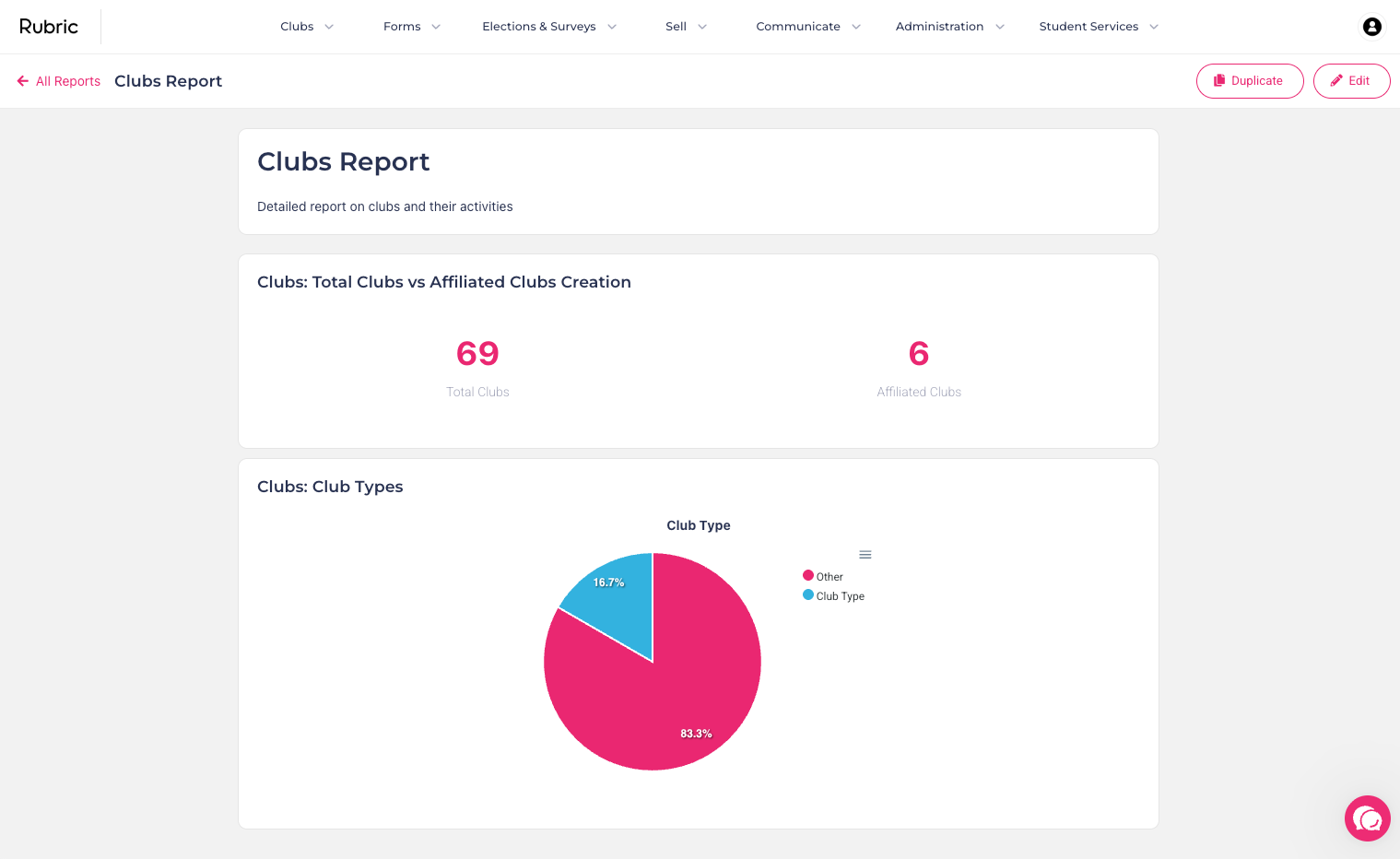
You will then see your live report:
Managing Advanced Reports
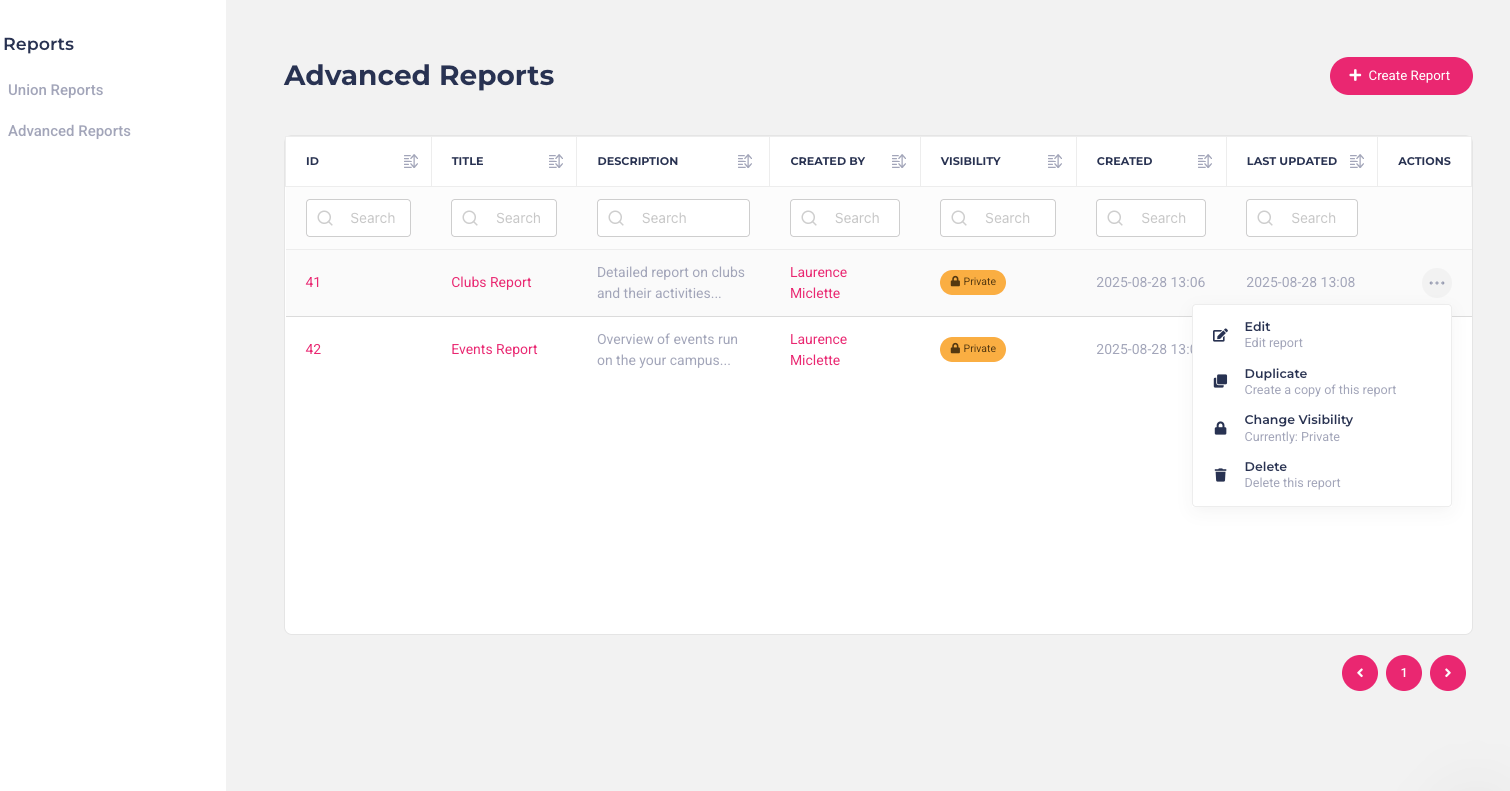
All saved reports appear in your Advanced Reports dashboard.
You can:
Click on a Report Title to view it
Edit existing reports
Duplicate them
Delete them
Adjust visibility (make them private or share them with your whole organisation)
If you’re looking for a data source that isn’t available, just email support@hellorubric.com - we’ll help you explore your options.
Was this helpful?
Still need help? Ask the team