Creating and Managing Document Templates
The Official Document Generator helps unions create and send official documents, like bank letters, confirmation notices, and volunteer certificates, quickly and accurately. Instead of manually editing letters every time, you can create reusable templates that automatically pull the correct details for each student, club, or form.
Why Use It?
Unions and universities use this feature to:
Bank Letters – Certify club account details for financial institutions
Registration Notices – Send formal confirmation or rejection emails to clubs
Volunteer Certificates – Issue completion letters to volunteers
Case Management – Generate goal-setting documents for advocacy or support cases
How to Use the Official Document Generator
Step 1: Access the Module
In your admin portal, go to Operations > Document Generator
Step 2: Create a New Template
Click Create Template and select a template type:
Club Document – Pulls details from a specific club (e.g., name, logo)
Form Document – Pulls responses from a specific form submission. You’ll be prompted to select the form in question.
General Document – Standard templates that don’t require club or form data.
Step 3: Customise the Template
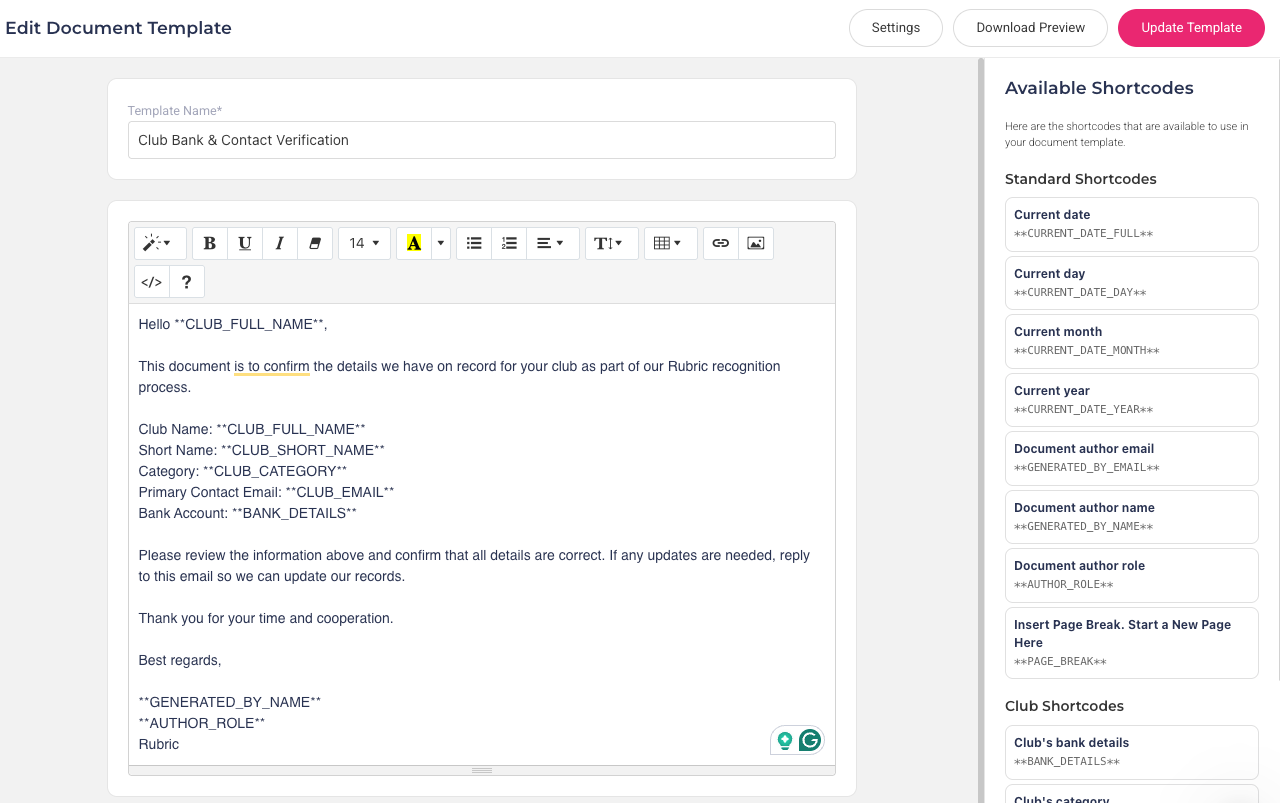
You’ll see an editable template page where you can:
Add your content (title, text, signatures, etc.)
Insert your logo
Add dynamic fields (shortcodes) from the right-hand panel. Examples:
For Club templates, you can insert elements like club name, category, email, bank details, or logo
For General templates, you can insert standard fields like current date, author details, or page breaks
For Form templates, you can insert form-specific details like the form title or answers to specific questions
Note: Shortcodes will automatically populate with real data when the document is generated.
Step 4: Save and Preview
Click Create Template to save your changes, then Download Preview to check the layout.
Tip: Use Adjust Settings if you want to set a default value for empty fields.
Step 5: Generate and Send Documents
Once your templates are ready, you can generate and send them directly to clubs or students from the relevant sections in the portal. Currently, documents can be generated from the following pages:
Clubs > Club Management Table > Under More Actions > Generate Document
Clubs > Club Management > Click on a Specific Club > Generated Documents > + Generate Document
Forms > Submissions > Under Actions > Generate Document
Forms > Submissions > Open a specific submission > Documents > + Generate Document
After selecting Generate Document:
Choose a template.
Review and edit the document if needed.
Click:
Save & Download – to download the file.
Save & Send – to email it directly to the club or student (their email will display at the top).
Manage Document Templates
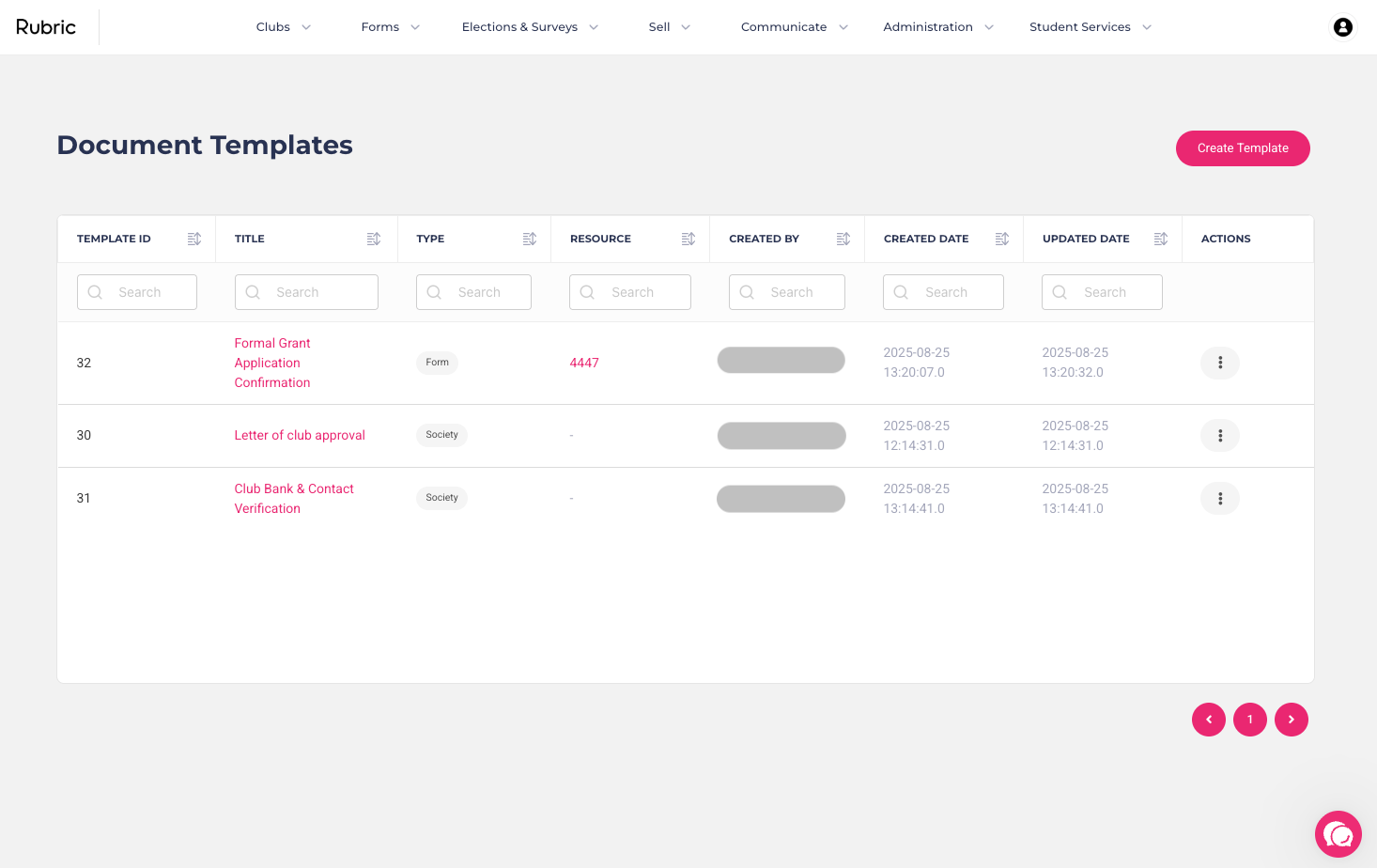
You can view and manage all your document templates under Administration > Official Document Generator. This section displays a full list of templates you’ve created and provides options to edit or archive them.
Template Table Overview
The table shows the following details for each template:
Template ID – Unique identifier for the template.
Title – Name of the official document template. Click to edit.
Type – Template type: Club Document, Form Document, or General Document.
Resource – If linked to a form, shows the form ID (clickable to view the form).
Created By – Name of the person who created the template.
Created Date – When the template was first created.
Updated Date – Last time the template was updated.
Actions – Options to Edit Template or Archive Template.
Was this helpful?
Still need help? Ask the team