Getting started with event approval
Event Approval in Rubric ensures all club- or student-led events meet your organisation’s standards before being promoted or ticketed. It helps you maintain compliance with your policies, safety requirements, and venue guidelines, all in one streamlined process.
How does event approval work on Rubric?
Event approval on Rubric follows a simple step-by-step process. You can refer to the flowchart below for a visual overview.
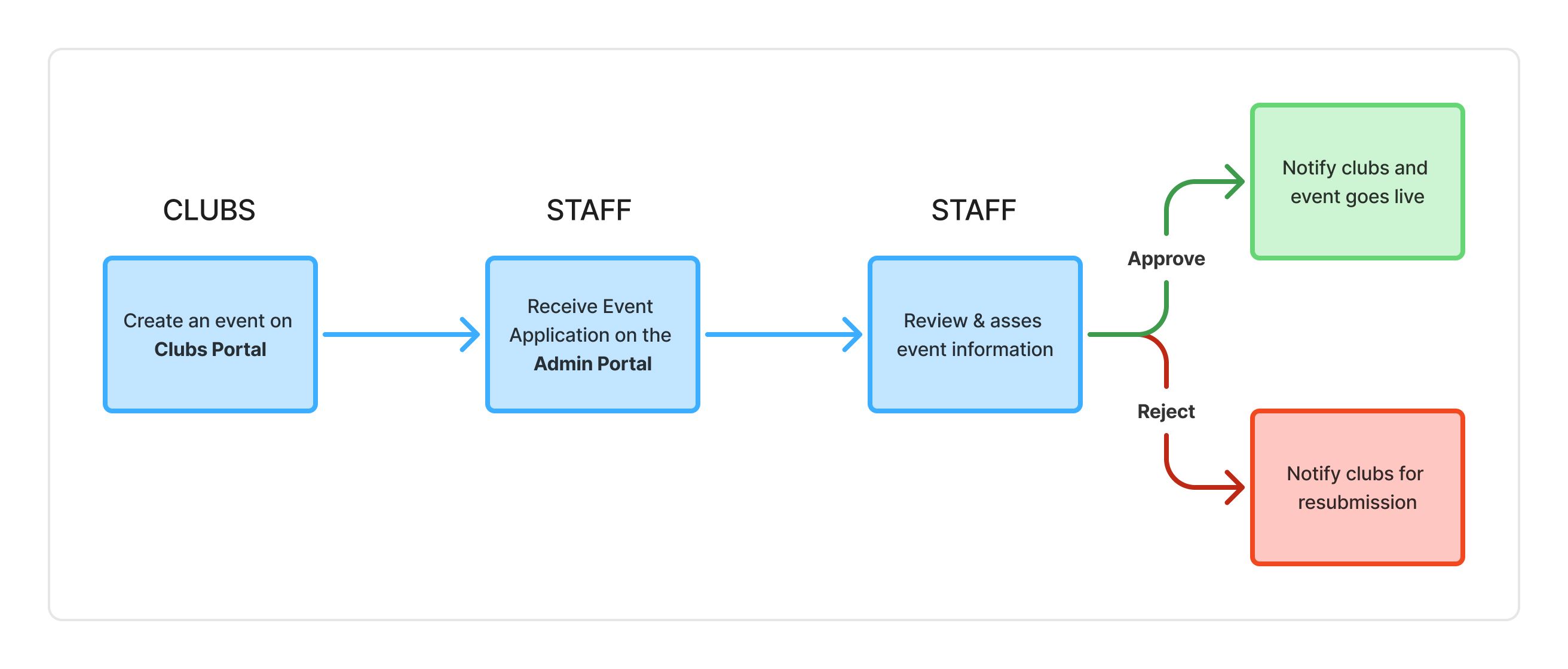
Step 1: Clubs submit their event
A club starts by creating an event on the Clubs Portal. To submit an event, they must provide:
General event details, such as:
Event name, date, location, description, type, and ticket information
(Read more about creating an event here)
Additional information required by your organisation, such as:
Budget plan
Risk assessment
Questions related to location, participants, or venue
(Learn how to set these up in Setting Up Event Approval Questions)
Once submitted, the event status changes to Pending Approval and appears in the club’s portal under “Draft Events.”
Step 2: Event appears on the Admin Portal
All pending submissions show up in the Events table in the Admin Portal (Clubs > Events Manager).
You’ll also receive an email notification when a new event is submitted.
Step 3: Review the event submission
To review a submission, go to the Events table and click Submission under the Quick Actions column for the event.
This opens the Event Submission page, where you can:
View all event details and answers to your custom approval questions.
Download any attached documents (e.g., risk assessments, venue booking forms).
Add internal notes for other admins.
Read more about Managing and reviewing event submissions
Step 4: If you approve the event
When you approve an event:
The club receives an approval email, including any notes you’ve added.
The event is published automatically on the Students Platform, where students can view details and purchase tickets.
Important: How edits are handled depends on your settings. In Settings > Campus Settings (under the Event Approvals section), you can enable “Reset approval status on event edit.”
If enabled: When a club edits an approved event, its status will reset to Pending Approval and the event will not be public again until re-approved.
If disabled: Edited events remain live without requiring new approval.
Step 5: If you reject the event
When you reject an event:
The club is notified via email, with your notes or feedback included.
The event is moved back to Draft status in the Clubs Portal and appears under Rejected Events for the club to see.
The club can make edits and resubmit it for review.
Was this helpful?
Still need help? Ask the team