Multi-Approval Setting
About Multi-Approval
Multi-approval is a form setting that, when enabled, requires approvals from multiple stakeholders (e.g., union staff and/or club executives). This ensures accountability and proper authorisation at each stage of the approval process.
Example:
When a club applies for funding, enabling multi-approval ensures the request is reviewed by all necessary parties before approval. A typical workflow might include:
Club president - confirms the request aligns with the club's goals and budget
Union finance staff - verifies the financial viability and compliance with funding guidelines
Set Up Multi-Approval for a Form
Go to Forms > Forms Manager, and open the form in Edit mode
Click the Settings button (see image)
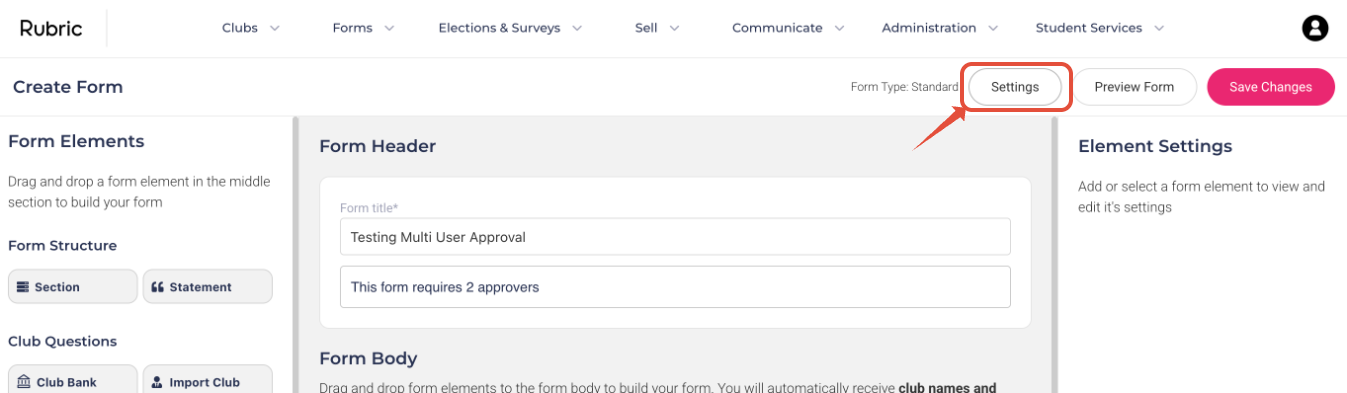
Toggle Multi User Approval ON
Select the people who should approve the form
Note: If someone is missing, add them via User Management and ensure they have the appropriate access
(Optional) Set the number of student executives required to approve the form
Click Save
Manage Submissions of a Multi-Approval Form
In the submissions table (location varies depending on form type - e.g., General, Grants, or Affiliations), you’ll see the number of required approvals displayed under the form reference number (view below).
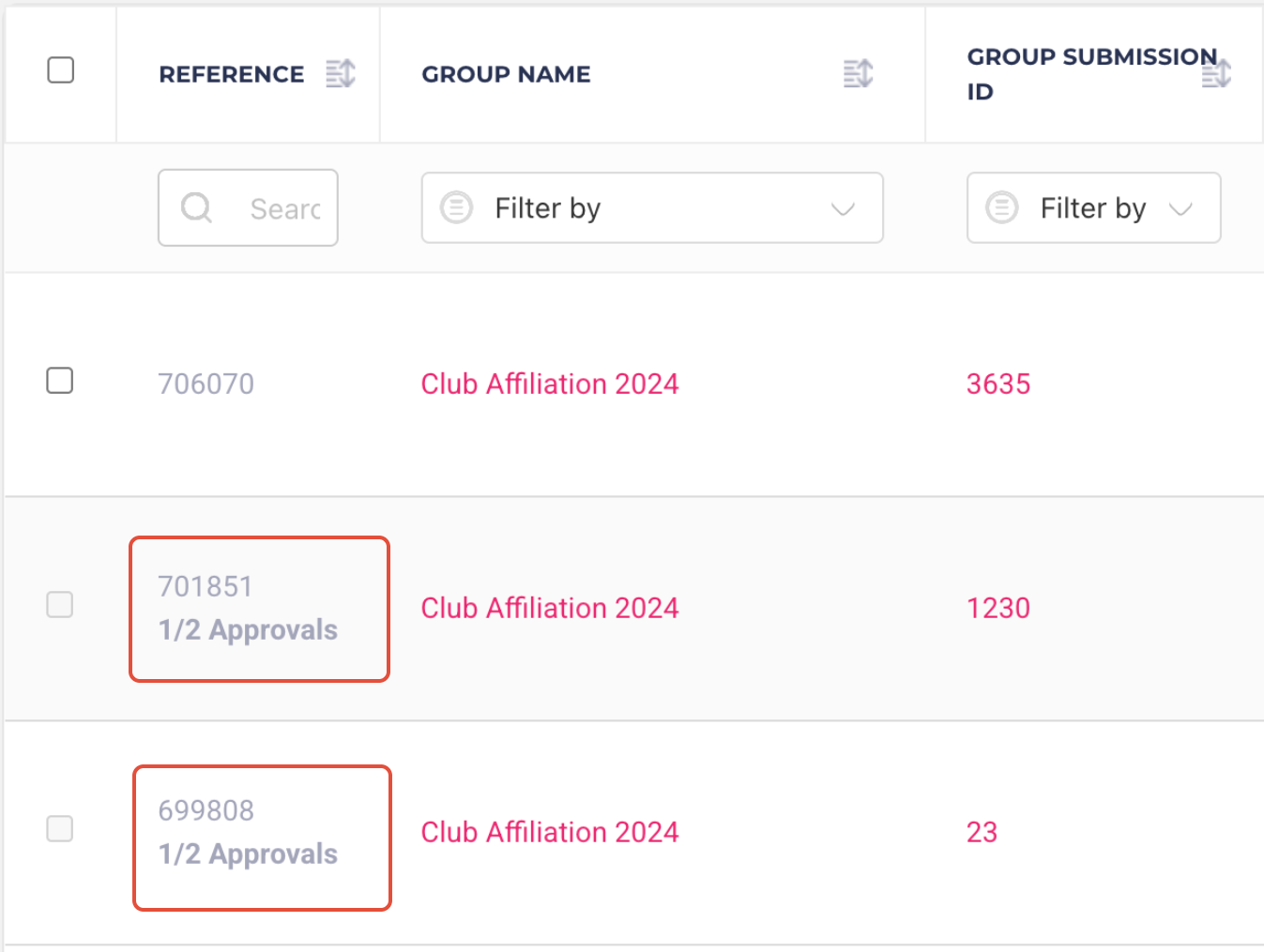
All listed approvers will receive an email notification when their approval is needed.
To approve a form:
Confirm you're listed in the Approvers section on the submission detail page
Click More > Approve this form
Your approval will be recorded, and the status will be updated in the Approvers section
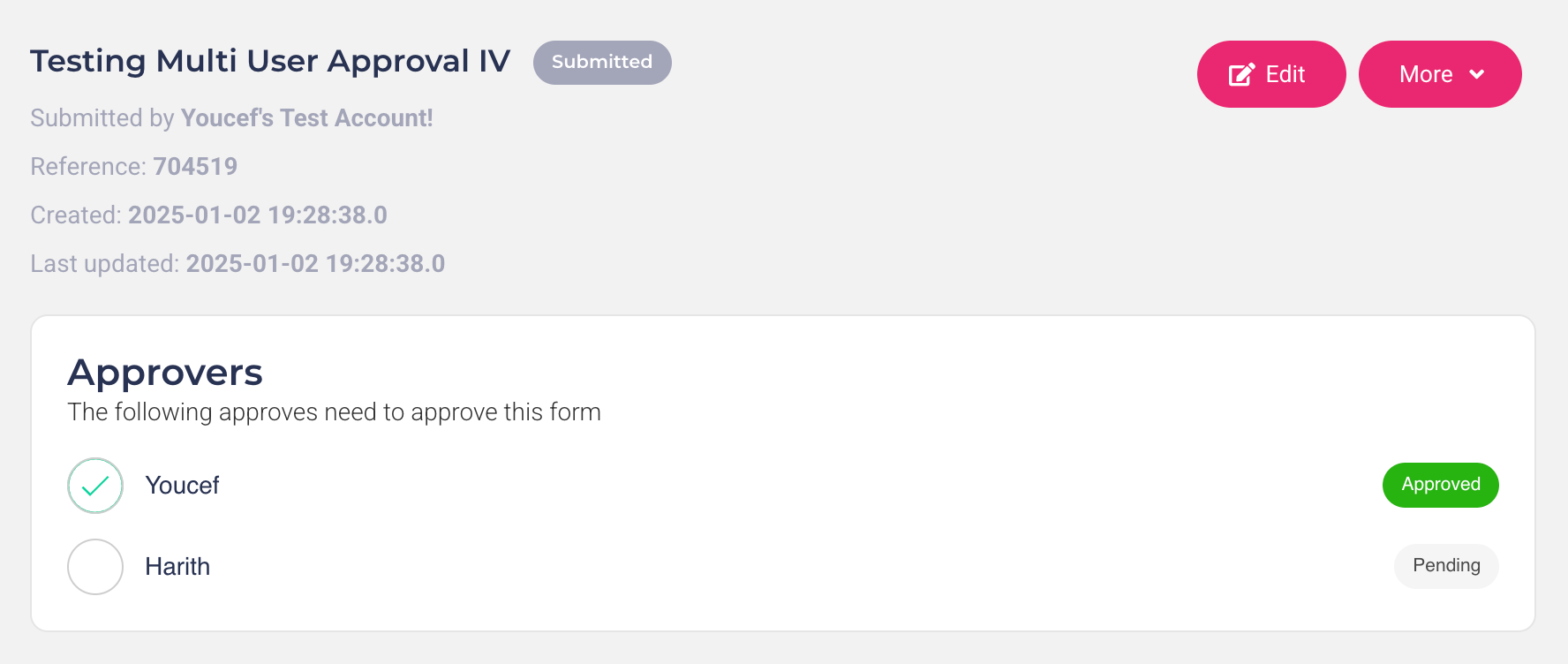
Once all approvers have submitted their approval, the form’s status updates to Approved and moves to the Approved tab.
Note: If one approver rejects the form, the status reverts to Pending, and all approvers must review and approve it again.
Was this helpful?
Still need help? Ask the team