Creating an inventory store
Creating a store, assigning it to a branch, and the pages each store has
An inventory store is the place items are borrowed from — for example, a "Media Equipment Store" or a "Sports Gear Cupboard". Each store has its own items, booking forms, bookings and settings.
Creating a store
Log in to the Union Portal, click on Student Services in the top menu and select Inventory Booking from the drop-down menu. The Inventory Stores page lists your stores, with how many items each has, how many are out now and how many are overdue.
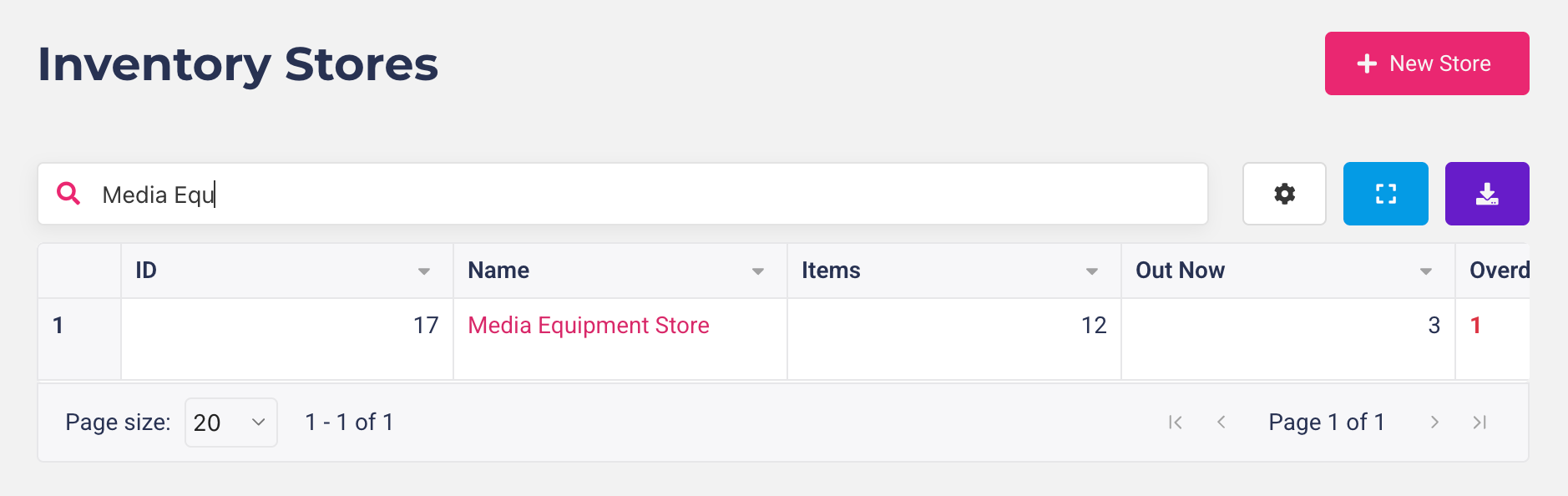
Click New Store in the top-right corner. A side panel opens.
Give the store a Store Name — this is what students and clubs see, for example "Media Equipment Store". Use the Description to say what can be borrowed and where to collect it; it's shown on the store's booking page.
If your union uses branches, choose the branches that look after this store under Assign to Branch. Only admins in those branches will see the store and its bookings. Your own branches are marked "(Member of)". If you belong to one or more branches and aren't an account admin, you'll need to choose at least one of your branches.
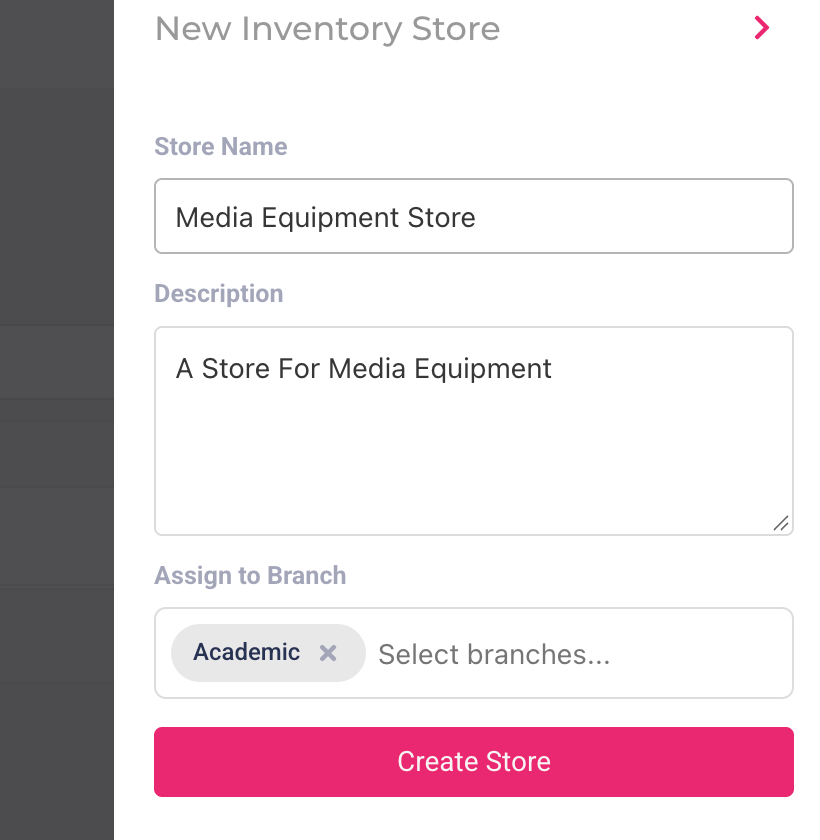
Click Create Store. You'll be taken straight to the new store's Store Details page.
What's in a store
Each store has its own side menu:
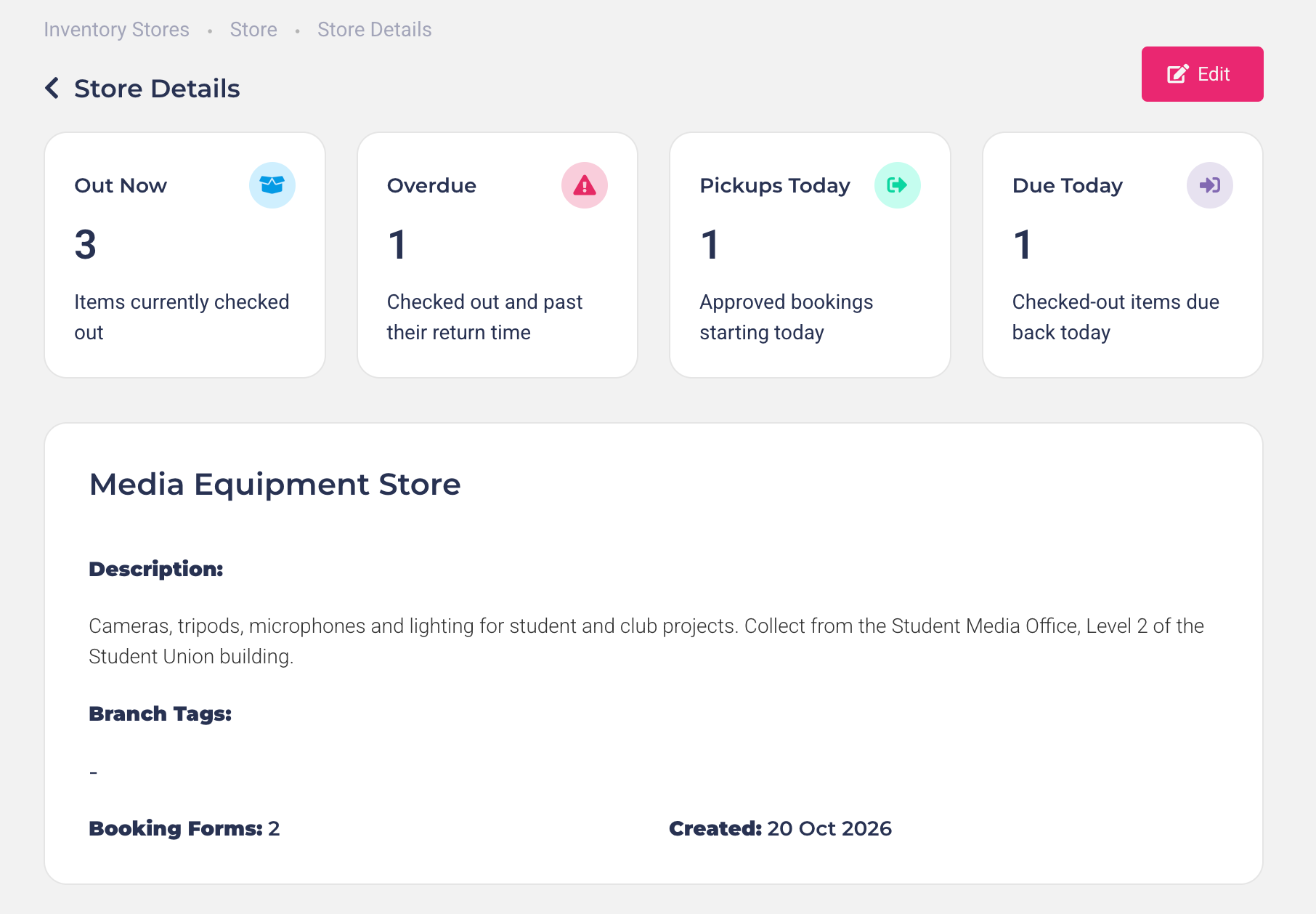
Store Details: an overview with four counts — Out Now, Overdue, Pickups Today (approved bookings starting today) and Due Today (checked-out items due back today).
Bookings: every request and loan, where you approve, check out and return items (see Managing inventory bookings).
Items: the store's item groups and items (see Adding item groups and items).
Booking Forms: the student and club forms people use to book (see Creating inventory booking forms).
Submissions and Participants: the booking forms people have sent, and everyone who has booked (see Viewing inventory participants and submissions).
Settings: switch the store on or off, and choose whether admins are emailed about overdue items (see Inventory store settings and emails).
Editing a store
Click Edit on the Store Details page, or click Edit in the store's Actions menu on the Inventory Stores page. Change the name, description or branches, then click Update Store.
To close a store for good, see What happens when you delete a store, group, item or form.
Was this helpful?
Still need help? Ask the team