Managing submissions
All affiliation form submissions appear in a dashboard under Clubs > Affiliation > Affiliation Submissions. This dashboard allows you to review, approve, reject, and manage all responses in one place - eliminating the need for back-and-forth emails with clubs or students.
Submission Statuses
Submissions are grouped into four tabs:
Pending: Newly submitted forms that require review.
Approved: Forms that have been reviewed and approved.
Declined: Forms that have been reviewed and rejected.
All: Displays every affiliation submission, regardless of status.
Managing Submissions
Admins can take action on submissions either from the Affiliation Submissions table or by opening the submission form.
1. Submission Table Actions
From the Affiliation Submissions table, you can:
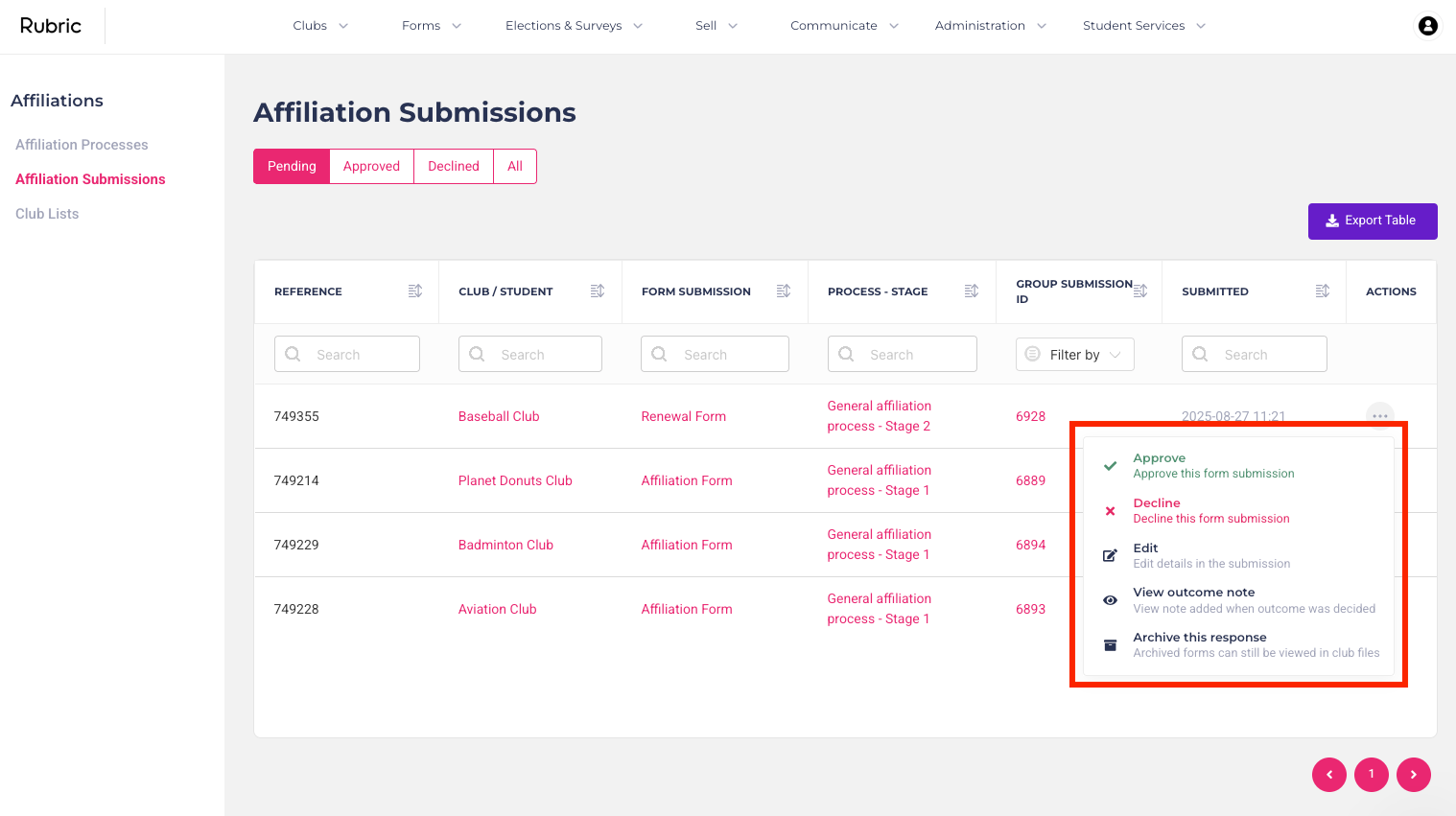
Approve or decline submissions – quickly make decisions without opening the form.
Edit a submission – adjust submitted responses if needed.
View notes – see any notes attached to the submission.
Archive the submission – remove it from the active dashboard.
Table Details
Each submission in the table displays:
Reference: Unique internal tracking number.
Club Name: The club that submitted the form.
Form Submission: Name of the submitted affiliation form.
Process – Stage: The name of the process and current stage of the submission.
Group Submission ID: Unique ID for processes that share the same name.
Submitted: Date of submission.
Actions: Approve, Decline, Edit, View Outcome Note, Archive Response.
2. Submission Form Actions
Click on a submission from the table to open the form. From there, you can:
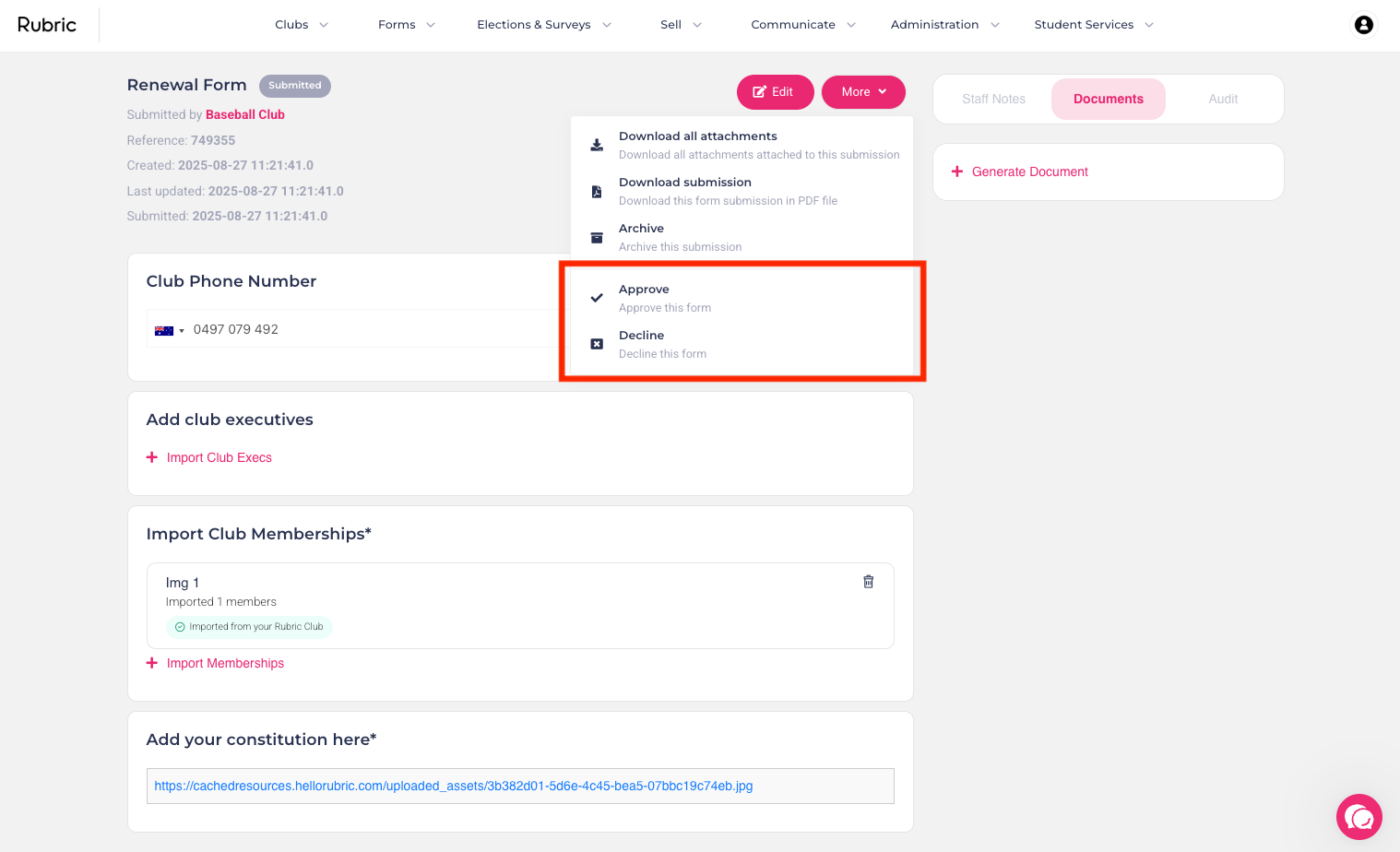
Approve or decline the submission (described below)
Add staff notes and attachments
Download the submission or all attachments
View the audit log
Generate official documents
3. Approving or Rejecting Submissions
From the table:
Click the icon under the Actions column for the submission.
Select Approve or Decline.
A pop-up will appear where you can add notes or attachments.
Click Submit – an email is sent to the club with your decision, notes, and attachments. The submission status updates automatically.
From the submission form:
Open the submission from the table.
Click More, then select Approve or Decline.
Add notes or attachments if needed.
Click Submit – the club receives an email, and the status updates automatically.
Was this helpful?
Still need help? Ask the team