News Approval
News Approval in Rubric gives administrators more control over the news published by clubs on campus. Clubs can create news articles directly through Rubric, while administrators can review submissions before they are made public. Approved news can be showcased on the public news page and on each club’s Link In Bio, giving students a central place to discover campus updates, announcements, and stories.
How does news approval work on Rubric?
News Approval follows a simple workflow:
Set which clubs require approval
Create your News Approval form
Clubs submit their news
Admins review and approve or reject submissions
Approved news is published to the selected locations
Step 1: Choose which clubs require news approval
Before setting up your approval form, decide which clubs should be required to have their news reviewed before it is published.
From the Admin Portal:
Click the Settings icon in the top-right corner.
Select Settings.
From the left-hand menu, click Campus Settings.
Select Approvals & Notifications.
Scroll down to News/Announcement Approvals.
Here, you can choose whether approval is required for:
Affiliated clubs
Unaffiliated clubs
You can enable either option or both, depending on how you want to manage news submissions across your campus.
Important: A News Approval form must be created before you can enable these settings.
Step 2: Create your News Approval form
Once you've decided which clubs require approval, you can create the form that clubs will use when submitting their news.
From the Admin Portal:
Go to Governance.
Click News Approval under the Approvals section.
Click Add approval questions.
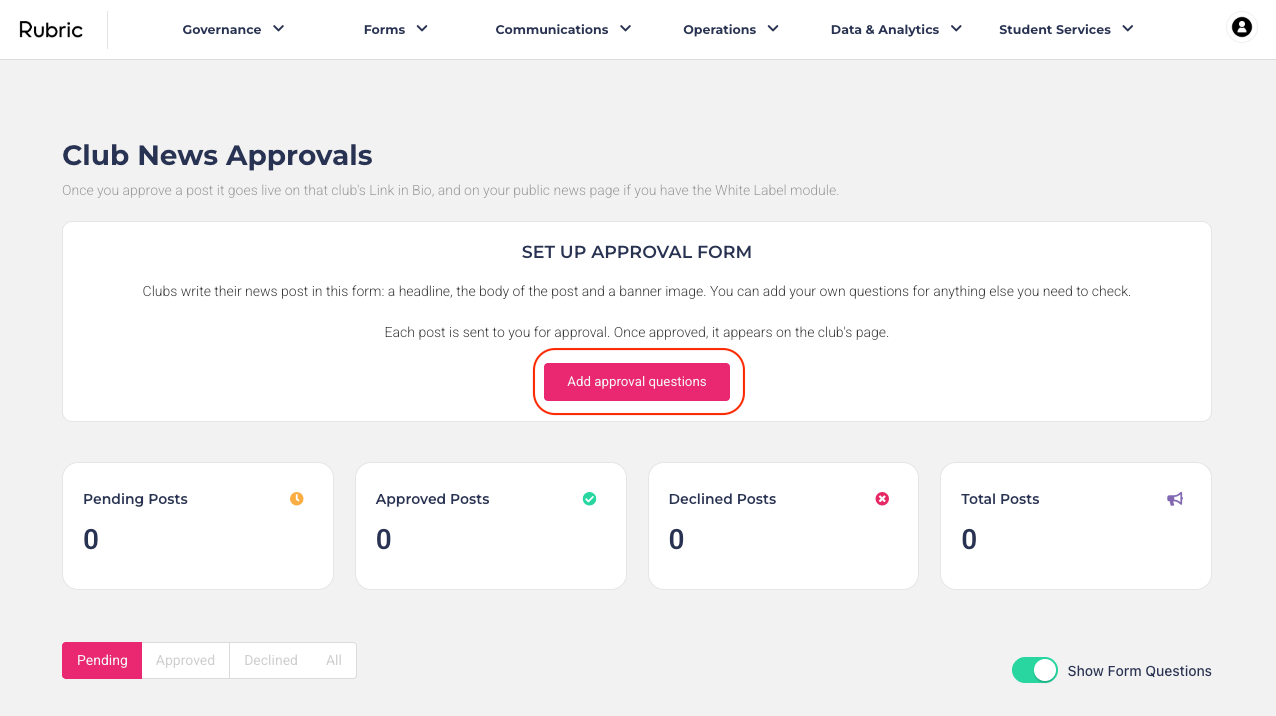
You'll be redirected to the Form Builder, where you can customise the information you want clubs to provide when submitting a news article.
By default, the form includes three required fields:
What is the headline of your news post?
Write your news post
Upload a banner image for your news post (16:9 ratio)
You can add additional questions or information to the form based on your approval's requirements.
For example, you may want to ask clubs to provide:
The purpose of the announcement
A preferred publication date
Relevant links
Internal information for the reviewing team
Make sure your form includes both a Form Title and Description before saving.
When you're finished, select Save > Save and Exit.
Tip: Only add questions that your team needs to review or manage the news submission. The default fields already provide the core information needed to create a news article.
Step 3: Clubs submit their news
Once News Approval is enabled for a club, club administrators can submit news articles directly through their Club Account.
To submit a news article:
Log in to your Club Account.
From the menu, click Communications.
Under the Social section, select Link-in-Bio.
From the Link-in-Bio sub-menu, go to the News section.
Click the pink Write a post button.
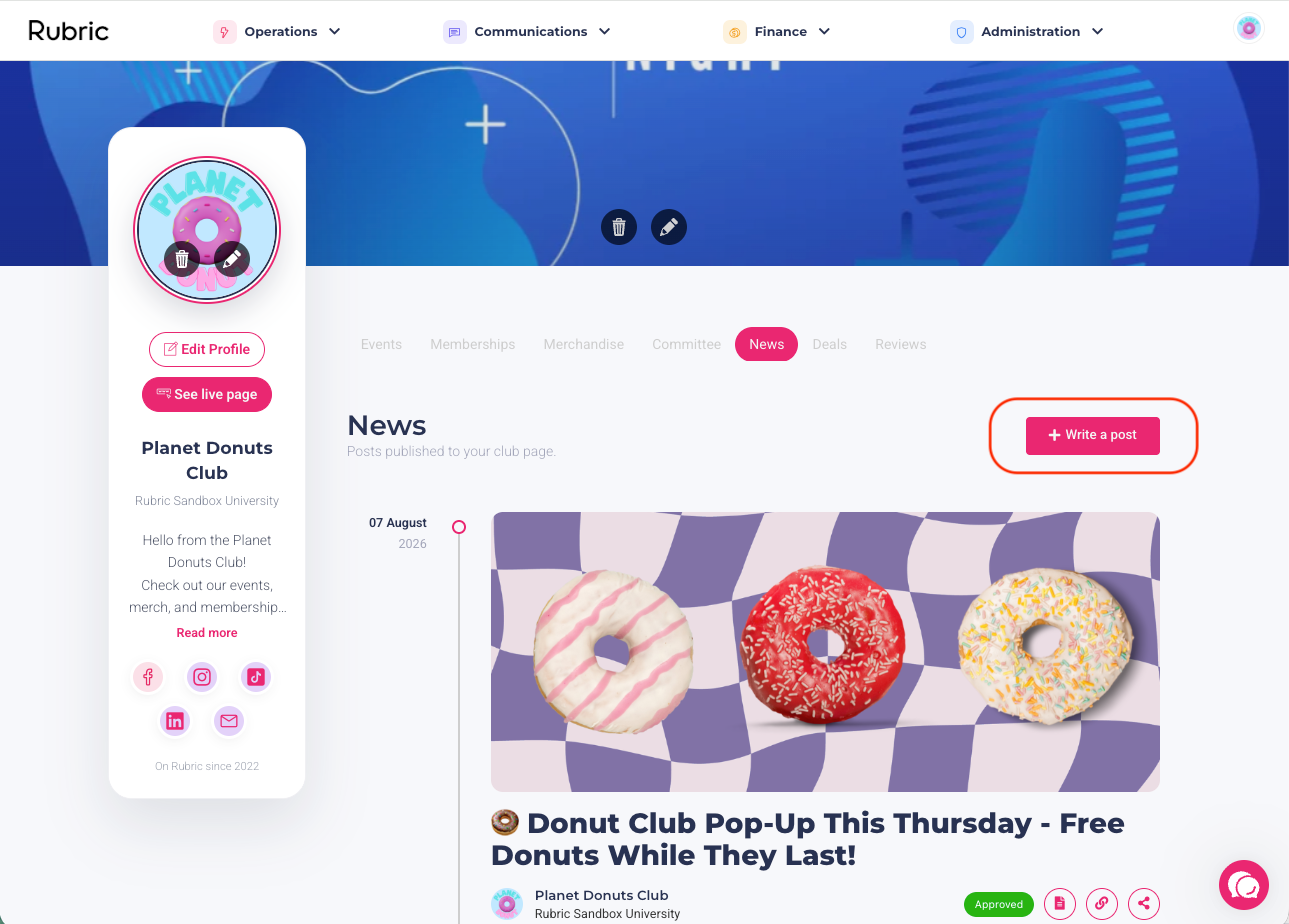
Clubs will then need to complete the News Approval form, including:
What is the headline of your news post?
Write your news post
Upload a banner image for your news post (16:9 ratio)
Any additional questions your organisation has added to the News Approval form.
Once all required information has been completed, click Continue to review the submission.
If everything looks correct, click Submit Form.
After submitting, the club can see that their news article is Pending approval from their Link-in-Bio page.
Step 4: Review the news submission
Administrators can review news submissions from the Admin Portal:
Go to Governance.
Click News Approval under the Approvals section.
All new submissions will appear under the Pending tab.
To view a full submission, click the Post title of the news article.
Alternatively, admins can use the Actions column to quickly manage a submission. Click the three-dot menu to:
Approve the submission
Reject the submission
Add internal notes when approving or rejecting the submission
Archive a submission
The approval process works like other form submissions in Rubric.
Read more about Managing Form Submissions
Step 5: Approved news is published
Once a news article is approved, it is automatically published to the club's Link In Bio.
Depending on your settings, approved club news can also be showcased in other places:
Administrator's Link In Bio: When Show on your Link in Bio is enabled, approved club news appears on your university or student union's News tab alongside your organisation's own posts.
Campus Portal: For campuses using a white labeled Campus Portal, approved club news can also be displayed there when the relevant setting is enabled.
This allows students to discover approved club news through the club's own profile, your organisation's Link In Bio, and, where available, your broader campus environment.
Was this helpful?
Still need help? Ask the team