Editing and Managing Existing Forms
Once a form is created, you can edit it, duplicate it, share it with students or clubs, or adjust its approval/rejection email templates. You can also activate or deactivate a form, depending on whether it’s ready to go live or still in draft.
Viewing your Forms
All your forms are stored under Forms > Manage Forms in the Admin Portal. Here you can quickly see their status (Active or Inactive) and access management actions like editing or duplicating.
Activating or Deactivating a Form
Form status determines if a form is live or hidden. Use the Active/Inactive toggle next to each form:
Active: The form is visible to students/clubs and can accept submissions.
Inactive: The form is saved as a draft or temporarily hidden from users (e.g., between funding rounds).
Editing a Form
You can edit a form at any time to update questions or settings.
From Forms > Manage Forms, click the three dots under Actions and select Edit.
Make your changes and click Publish Form to update it.
Note: Editing a live form affects all future submissions, but previous submissions remain unchanged.
Duplicating a Form
Duplicating allows you to reuse an existing form as a starting point, saving time when creating similar forms.
Go to Forms > Manage Forms, click the three dots under Actions, and select Duplicate.
A copy of the form will appear in your list, ready for editing.
Sharing a Form
Once a form is active, you can share it directly with students or clubs.
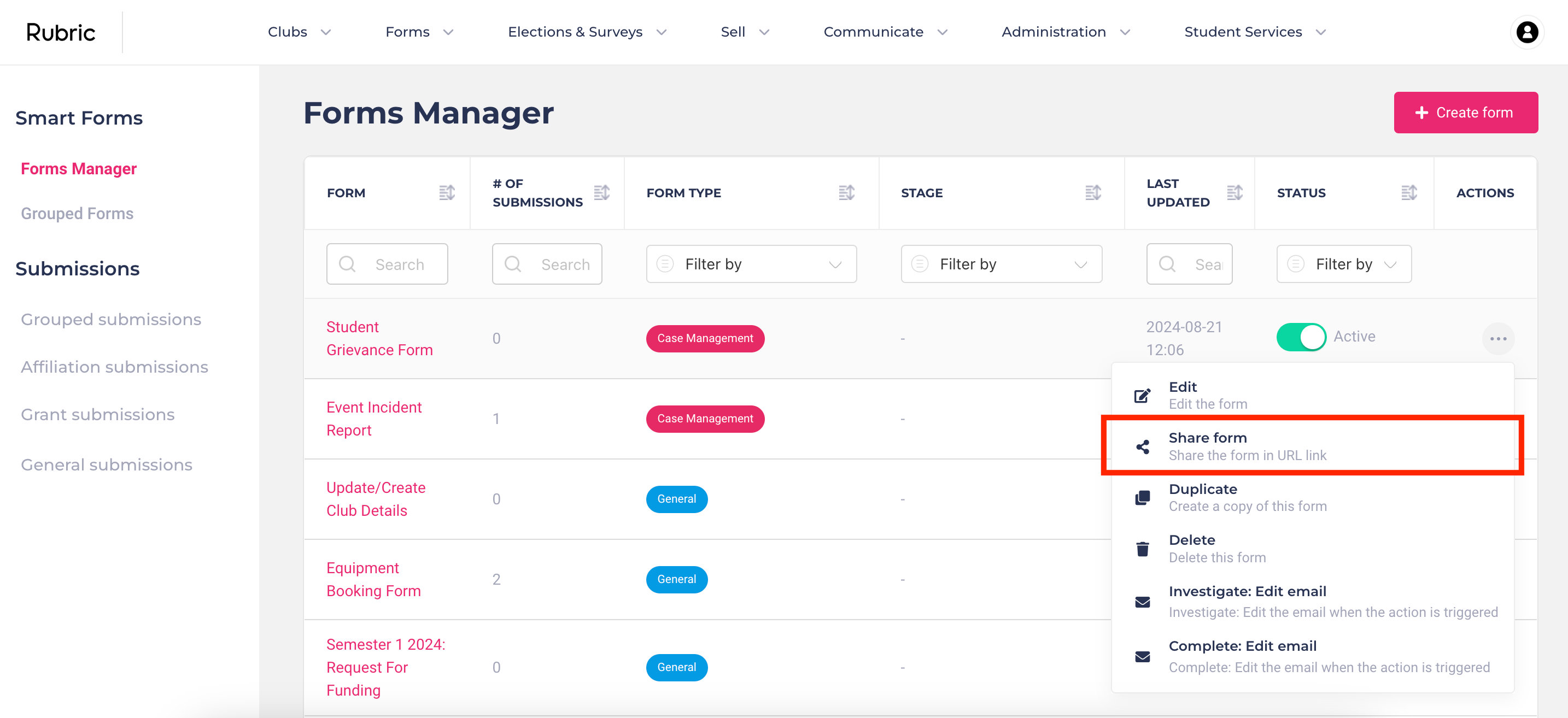
In Forms > Manage Forms, click the three dots under Actions and select Copy Link.
Share this link on your website, social media, or email communications.
Club forms will also automatically appear in the Clubs Portal under the "Forms" module, so clubs can access them directly without needing the shared link.
Editing Approve/Reject Emails
Go to Forms > Manage Forms, click the three dots under Actions, and select Approve: Edit Email or Reject: Edit Email.
This opens the email template editor where you can adjust the text, colors, logos, buttons, and more.
Click Save Template to apply changes.
To change other aspects of the emails (e.g., the “Reply-To” email address), go to Edit > Settings for that form. Learn more →
Deleting a Form
If a form is no longer needed, you can delete it permanently.
From Forms > Manage Forms, click the three dots under Actions and select Delete.
Confirm your choice.
Warning: Deleting a form also deletes all its submissions. Consider exporting submissions before deleting.
Was this helpful?
Still need help? Ask the team