Getting started with Inventory Booking
What Inventory Booking does, how stores, groups, items and bookings fit together, and how to get set up
Inventory Booking lets your union lend physical equipment — cameras, tripods, AV gear and so on — to students and clubs. People book the exact items they need for a pickup and return time through a booking form. You approve the request, check the items out when they're collected and mark them returned when they come back, so you always know what's out, who has it and when it's due back.
How it works
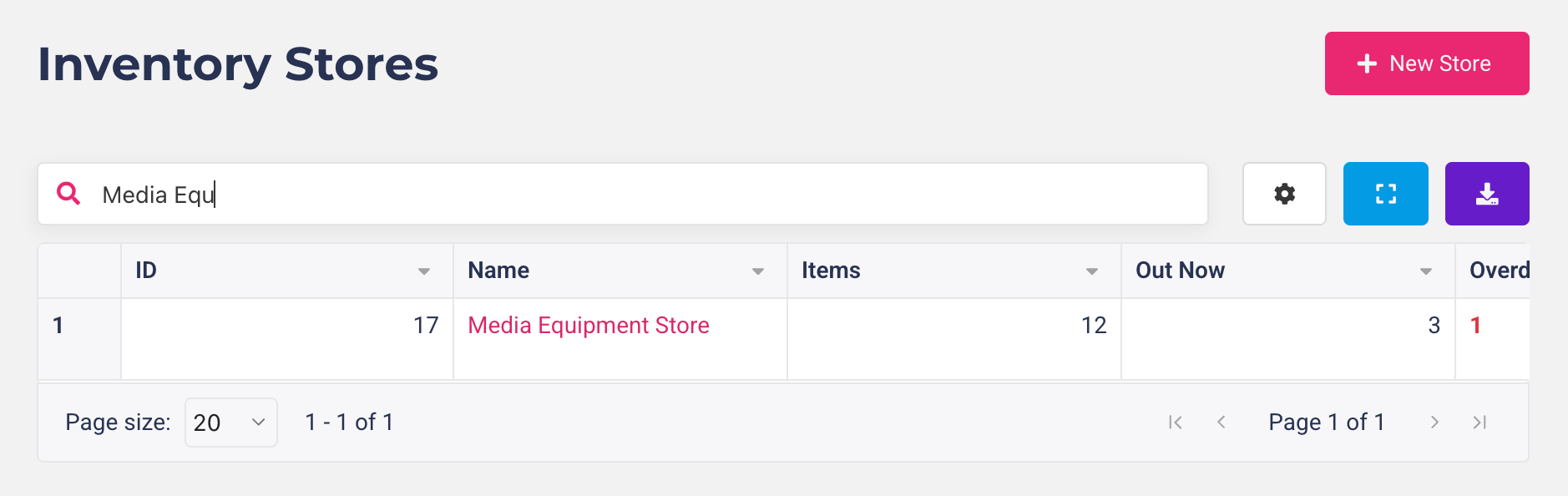
Inventory store: the place items are borrowed from, for example "Media Equipment Store". Each store has its own items, booking forms, bookings and settings, so you can run several stores side by side.
Item group: organises a store's items, for example "Cameras" or "AV equipment". Booking forms can be limited to certain groups.
Item: one real, physical thing, for example "Camera 03". If you have five identical cameras, you add five items (you can add them all in one go). Because each item is one object, Rubric always knows exactly which camera is with whom.
Booking form: a student booking form, a club booking form, or both. People pick a pickup and return time, then choose from the items that are free for that time.
Booking: one item for one pickup-to-return time. If someone books a camera and a tripod together, that's two bookings on the same submission.
The life of a booking
Requested: the student or club submits a booking form, and the request shows as Pending on your Bookings page. A request doesn't hold the item yet, so two people can ask for the same item at the same time.
Approved: you approve the request, which claims the item for those times. Rubric checks again that the item is free, so two bookings for the same item can never both be approved for the same time.
Checked out: you check the item out when it's collected.
Returned: you mark it returned when it comes back, with an optional note about its condition.
Along the way, you can reject a request, change a booking's item or times, or cancel a booking that hasn't been collected yet. An item that's still out after its return time shows as Overdue, and no one else can book it until it's marked returned.
Setting up
Log in to the Union Portal, click on Student Services in the top menu and select Inventory Booking from the drop-down menu.
Create a store (see Creating an inventory store).
Add the things people can borrow (see Adding item groups and items).
Create a student or club booking form so people can book (see Creating inventory booking forms).
From there, requests arrive on the store's Bookings page (see Managing inventory bookings). If you don't see Inventory Booking in your menu, you'll need access to the Inventory Booking module - contact your account manager or sales@hellorubric.com.
Inventory Booking (Legacy)
If your union used inventory booking before, that version is still available under Student Services as Inventory Booking (Legacy) and works as it always has. The two are separate: items, forms and bookings aren't shared or moved between them. We recommend setting up new stores in Inventory Booking.
Was this helpful?
Still need help? Ask the team