Setting Up a Digital Membership Pass
A Digital Membership Pass gives your members a convenient way to access and display their membership directly from their phone. Members can add their pass to Apple Wallet or Google Wallet and use it to verify their membership, access member benefits, or identify themselves at events. When a member joins your club, they'll receive a text message with a link to download their digital membership pass.
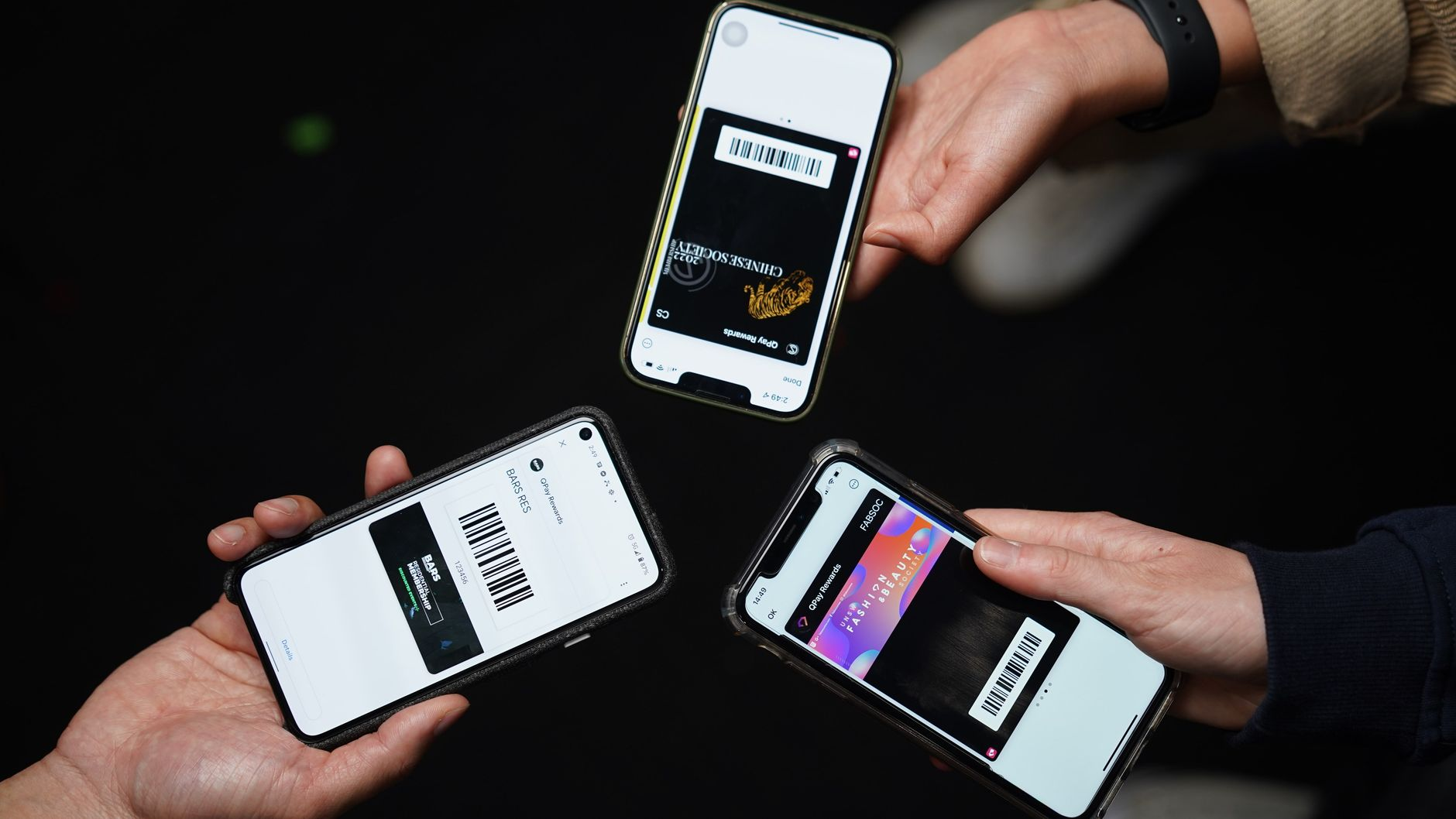
How to set up your Digital Membership Pass
Before you set up the digital membership pass, you should prepare a few things to customise the look of the pass. You can make this quickly on free design platforms like Canva or Figma.
To set up your Digital Membership Pass:
Login to your Club Portal.
Go to Operations > Memberships > Overview.
Find the Digital Membership Pass section and click Edit Pass.
Follow the set up steps:
Pick a Membership Pass Style: Select a style to see how your membership pass will look. You can further customise the appearance using Advanced Styling.
Upload your Logo Image:
Dimensions: 512 × 512 px
Format: PNG
Upload your Strip Image:
Dimensions: 1032 × 366 px
Format: PNG
Add your club’s official site: Enter a URL for your club or society's website or social media page. For example, you can link to your website, Facebook, or Instagram.
Send a test pass (optional): Enter a mobile number to send yourself a test pass and see what it looks like on your phone.
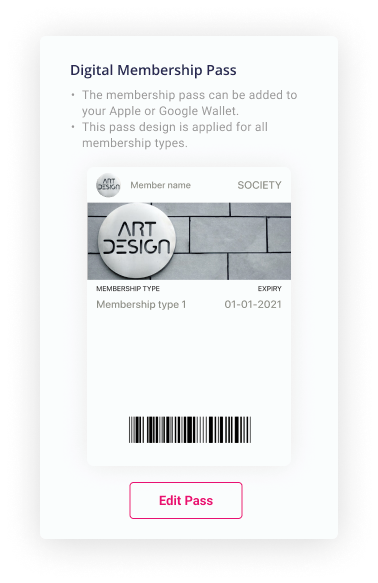
As you make changes, a preview of your membership pass will appear on the right side of the page, allowing you to see how your pass will look before saving it.
Click Save Changes when you're happy with your membership pass.
Tip: Use the test pass option to check how your membership pass looks on a phone before sending it to your members.
How members receive their Digital Membership Pass
Once your Digital Membership Pass has been set up, members will receive a text message with a link to download their Digital Membership Pass.
Members can add their pass to Apple Wallet or Google Wallet and display it when they need to verify their membership.
Digital Membership Passes can be useful for:
Member identification: Quickly verify that someone is a current member of your club.
Member benefits: Confirm eligibility for member-only deals, discounts, or other benefits.
Events: Verify memberships when members attend events or purchase member-only tickets.
How to resend a Digital Membership Pass
If a member needs their Digital Membership Pass link sent again, you can resend it from their membership record.
Go to Operations > Memberships > Membership Sales.
Find the member whose pass you want to resend.
Click Edit in the Actions column.
Select Reset/Google Apple Pass.
A text message containing the download link will be sent to the member.
Note: Resetting the pass sends the member a new download link. It does not create a new membership.
Was this helpful?
Still need help? Ask the team