Managing your equipment bookings
Where to see your bookings, what each status means, finishing a draft, and cancelling a booking
Once you've booked equipment from your university/union, you can keep track of it from your profile or from the store's page.
Finding your bookings
Open your profile: Log in and go to your profile.
Open the Inventory tab: The tab shows how many bookings you have on the go — for example, Inventory (2). It's split into:
Current bookings: requests, approved bookings and items you have out, with any overdue items first.
Drafts: booking forms you've started but not submitted. Click Continue to pick up where you left off.
Book from: the stores you can book from. Click View store to see what's free.
History: your past bookings.
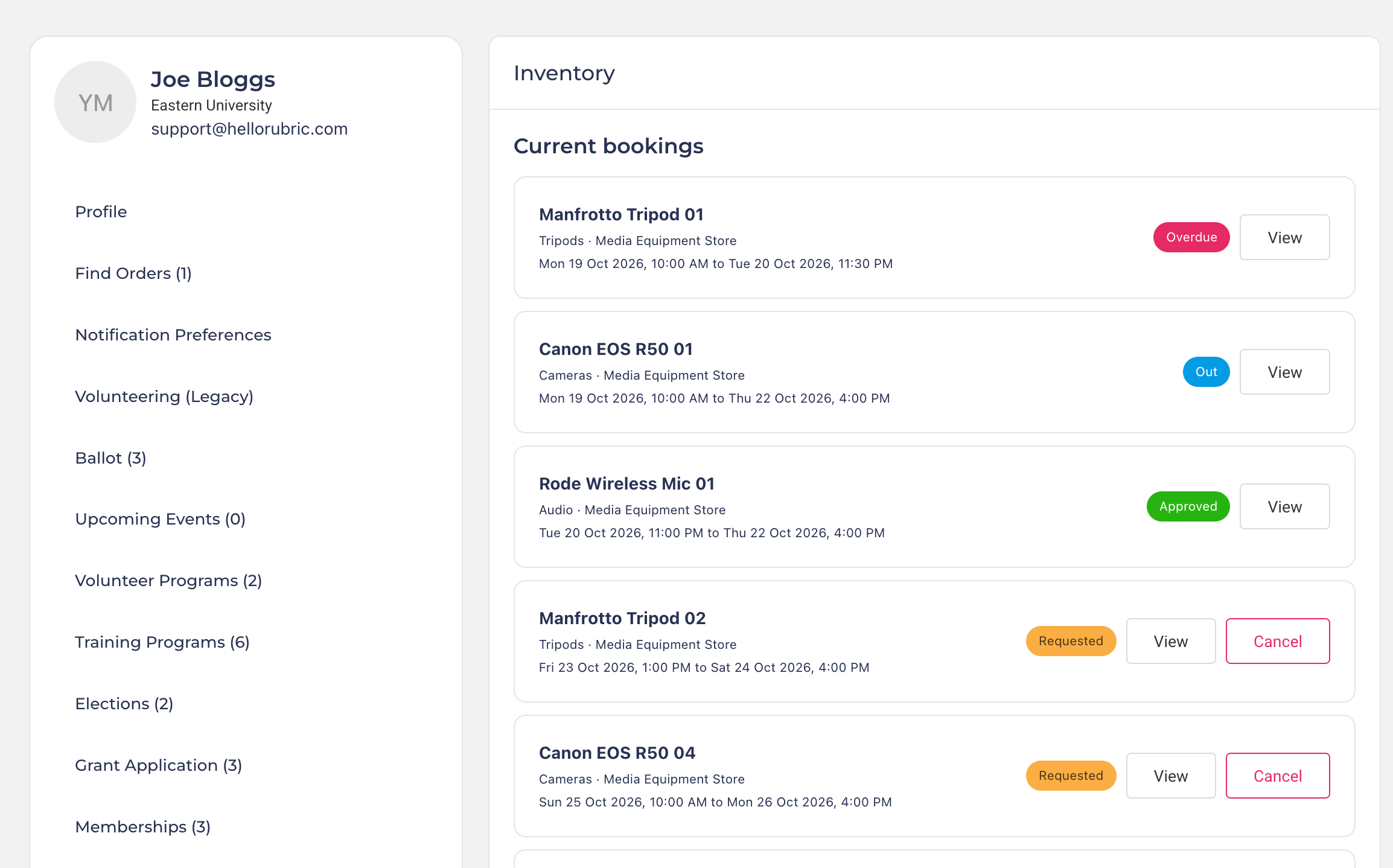
Each store's page also lists your bookings from that store under Your bookings. Click View on a booking to open the form you sent, including any notes from your university/union.
What each status means
Requested: waiting for your university/union to approve it.
Approved: the item is yours for those times. Collect it from the pickup location at your pickup time.
Out: you've collected the item.
Overdue: the item is past its return time. Please return it as soon as you can.
Returned: you've given the item back.
Rejected: the request was turned down. Click View to see if a reason was given.
Cancelled: the booking was cancelled, either by you or by your university/union.
Cancelling a booking
If you no longer need something, cancel it so someone else can borrow it:
Find the booking in the Inventory tab of your profile, or under Your bookings on the store's page.
Click Cancel and confirm.
You can cancel a requested or approved booking at any time before its pickup time. After that, or once you've collected the item, contact your university/union.
Changing a booking
Once a booking form is submitted, you can't change its items or times yourself. Either cancel the booking and book again (see How to book equipment from your union), or ask your university/union to change it for you. If they change it, you'll see a note on your booking saying what changed.
Older bookings
If you booked equipment before your university/union moved to the new booking system, those bookings are in a separate Inventory (Legacy) tab in your profile.
Was this helpful?
Still need help? Ask the team