Link In Bio
Your club’s Link In Bio is the central hub for your club or society. It gives students one place to discover your club, learn more about your activities, and access your events, memberships, merchandise, news, social media, and other important links. Club executives with access to the Link In Bio can customise their page and add or manage content directly from their club account.
How to access your Link In Bio
Log in to your Rubric account.
From the menu, click Communications.
Under the Social section, click Link In Bio.
From your Link In Bio page, you can manage your club's profile information, customise how your page looks, and add content for students to discover.
Customising your Link In Bio
Banner image
Your banner image appears at the top of your Link In Bio and is one of the first things students see.
Add or change your banner image
Click anywhere on the current banner image.
An upload window will appear.
Upload the image you'd like to use.
Recommended size: 1400 × 500 px
Delete your banner image
Click the trash icon at the bottom of the banner image to remove the current image.
Resize or rotate your banner image
Click the pencil icon on the banner image to open the image editing options. From there, you can resize or rotate your image.
Logo
Your club logo appears at the top of your Link In Bio alongside your club information.
Add or change your logo
Click on your current logo image.
An upload window will appear.
Upload the logo you'd like to use.
Recommended format: Square image
Delete your logo
Click the trash icon at the bottom of the logo image to remove the current logo.
Resize or rotate your logo
Click the pencil icon on the logo image to open the image editing options. From there, you can resize or rotate your logo.
Club description and social media links
You can update your club description and social media links from your profile.
Click Edit Profile underneath your logo.
Add or update your club description.
Add your club's social media links.
You can add the following social media platforms:
Instagram
Facebook
Discord
TikTok
LinkedIn
You can also include links and email addresses in your club description. These will automatically be converted into clickable links.
Adding content to your Link In Bio
Your Link In Bio can showcase different types of content to help students discover and engage with your club.
You can add:
Events
Memberships
Merchandise
Committee Members
News
Deals
Each content type has its own section on your Link In Bio.
Add an event, membership, merchandise, or other content
To add content to your Link In Bio:
Go to the section for the type of content you want to add.
For example, go to Events if you want to add an event.
Scroll down past any existing content.
From here, you have two options:
Get Started: Create new content in Rubric. Selecting this option will redirect you to the relevant page where you can create the content as usual.
Add an existing link: Add an external URL to showcase content that already exists elsewhere.
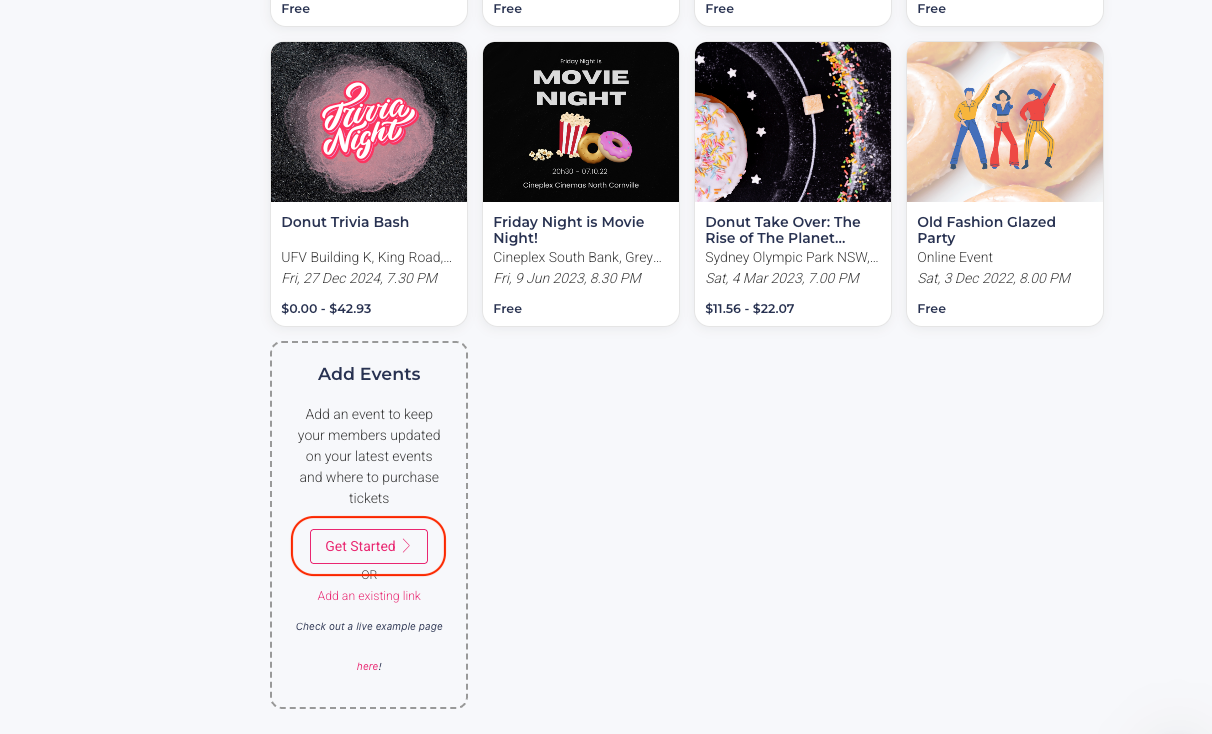
News
You can also use your Link In Bio to publish news articles and announcements for your club.
Go to the News section and select Write a post to create a news article.
You can add:
A news headline
Your news article content
A banner image
Any additional information requested by your university or student union
Learn more about Submitting a News Article
Approval requirements
Depending on your university or student union's settings, some content may need to be approved before it is published.
Events, memberships, merchandise, and news can all have approval requirements enabled.
If approval is required, your submission will show as Pending approval until it has been reviewed by an administrator. Once your submission is approved, it will automatically appear on your Link In Bio.
If approval is not required, your content can be published directly according to your organisation's settings.
Note: Approval requirements are managed by your university or student union. If you are unsure why a submission is pending approval, contact your campus administrator.
Viewing your Link In Bio
To see what your Link In Bio looks like to students, click the See live page button underneath your logo image.

This allows you to preview your published club information and content from the student's perspective.
Tip: Keep your Link In Bio up to date so students can easily find your latest events, memberships, merchandise, news, social media, and other club information.
Was this helpful?
Still need help? Ask the team