Tap & Pay: How to Collect Contactless Payments
Tap & Pay lets you collect contactless payments in-person without a card reader or terminal. It works with physical cards, Apple Pay, Google Pay, and other digital wallets.
✅ For iPhone users: Tap & Pay works on iPhone Xs or later with iOS 16.4 or higher.
Step 1: Enable Tap & Pay
As a Club Executive
Log in to your Clubs Portal.
Make sure you are listed as a club executive.
To check or add yourself, see Exec Team Management or click on the profile icon (top right) > Society Exec Team.
As an Admin
Log in to your Admin Portal.
Click the logo in the top-right corner > Account Profile > Exec Team Management.
Add yourself as a club executive (required for Tap & Pay to work).
Step 2: Set Up in the Rubric App
Install or update to the latest version of the Rubric app.
Log in with your student account (the account added as an executive, not the club or union account).
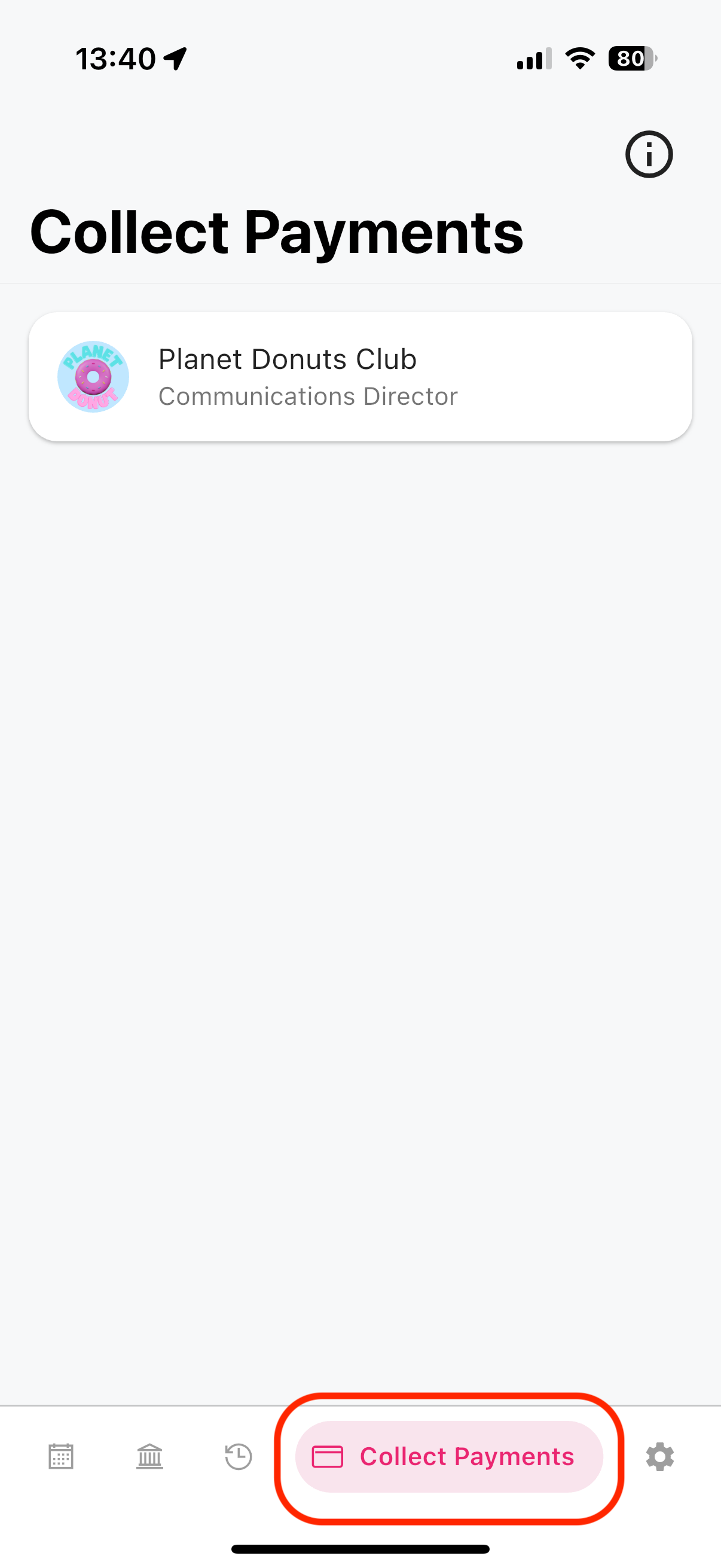
In the app, tap Collect Payments from the bottom menu bar.
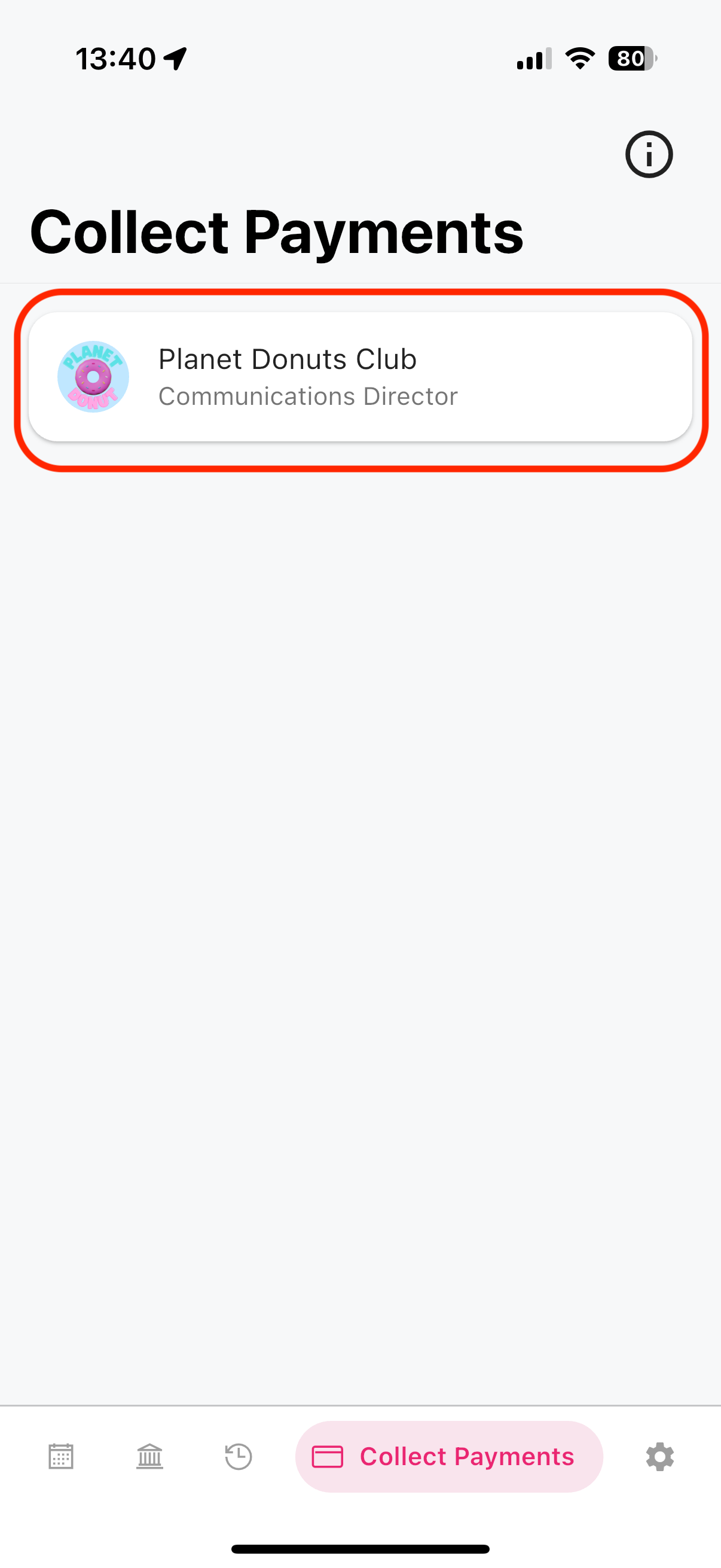
Select your club or union name.
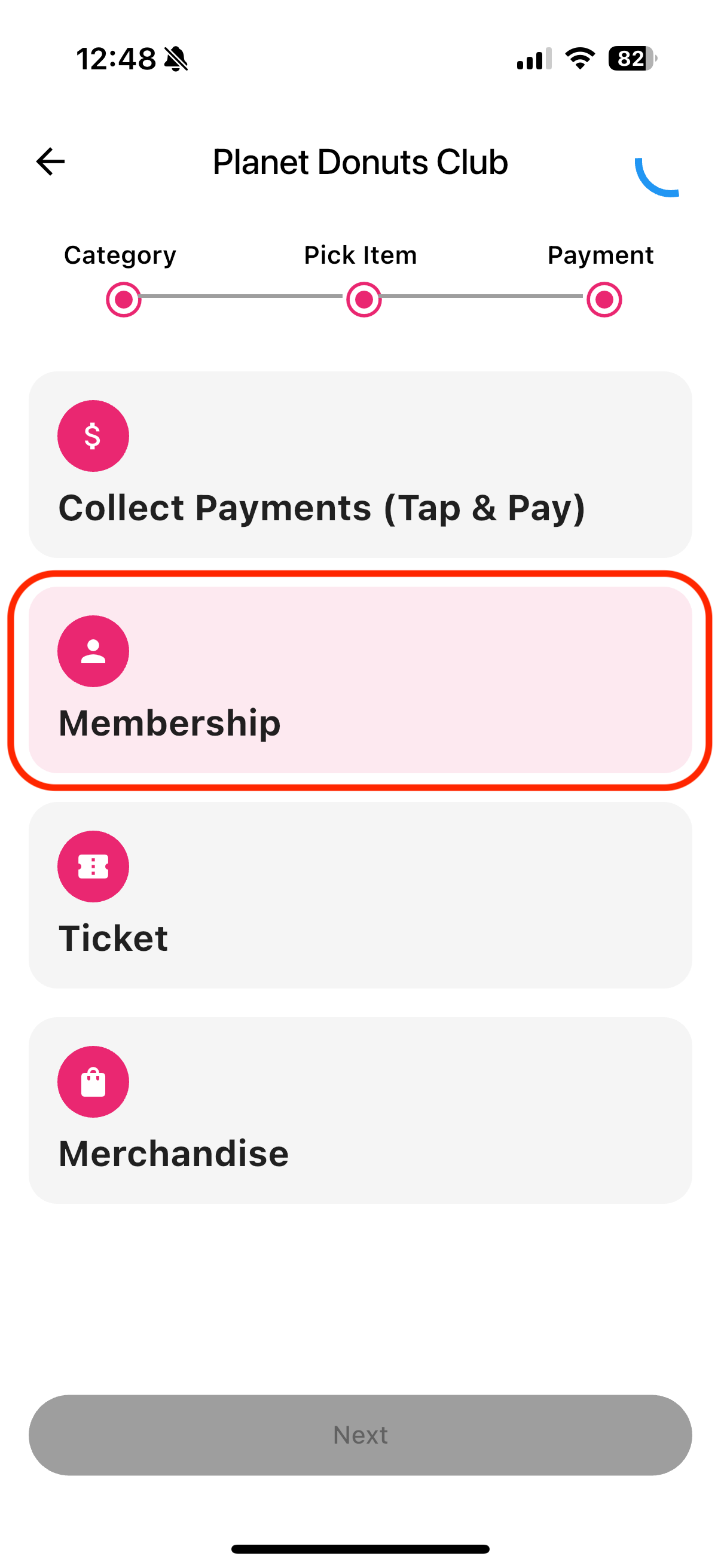
Choose an item category (e.g., Membership), then select the specific item.
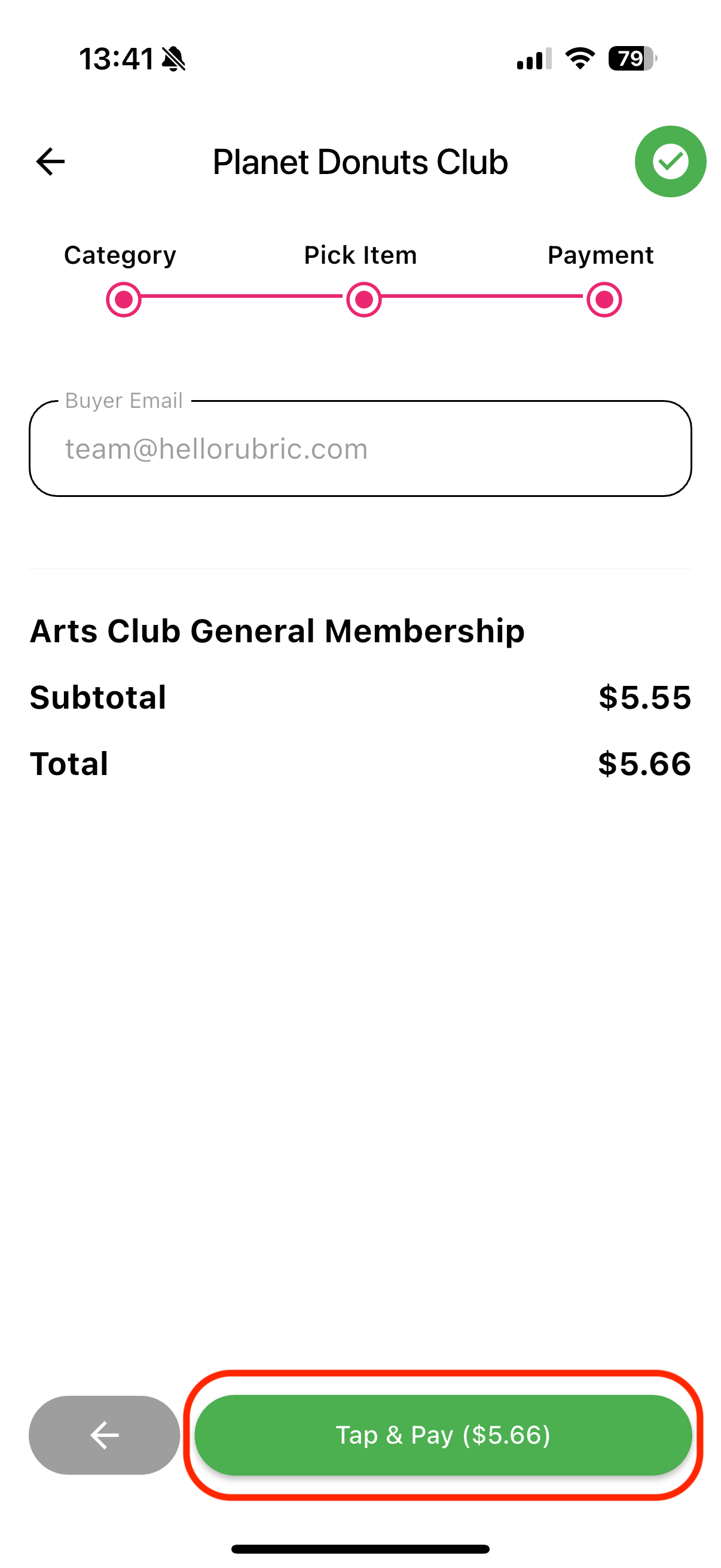
Enter the buyer’s email address and tap Proceed, then Tap & Pay.
Present your phone to the student:
Tap the amount to rotate the view.
Ask the student to hold their card horizontally and tap for a few seconds (cards may take longer).
Step 3: View Transactions
You can review all completed transactions anytime in the Tap & Pay module of your portal. Tap & Pay payments will also appear under the Settlements tab when the funds are reconciled to your account.
Was this helpful?
Still need help? Ask the team