Creating inventory booking forms
Creating student and club booking forms, setting up the Book Items question, and sharing and managing your forms
Students and clubs book items through a booking form. Each store can have student booking forms, club booking forms, or both. Every booking form has a Book Items question, where people choose a pickup and return time and then pick from the items that are free for that time.
Creating a booking form
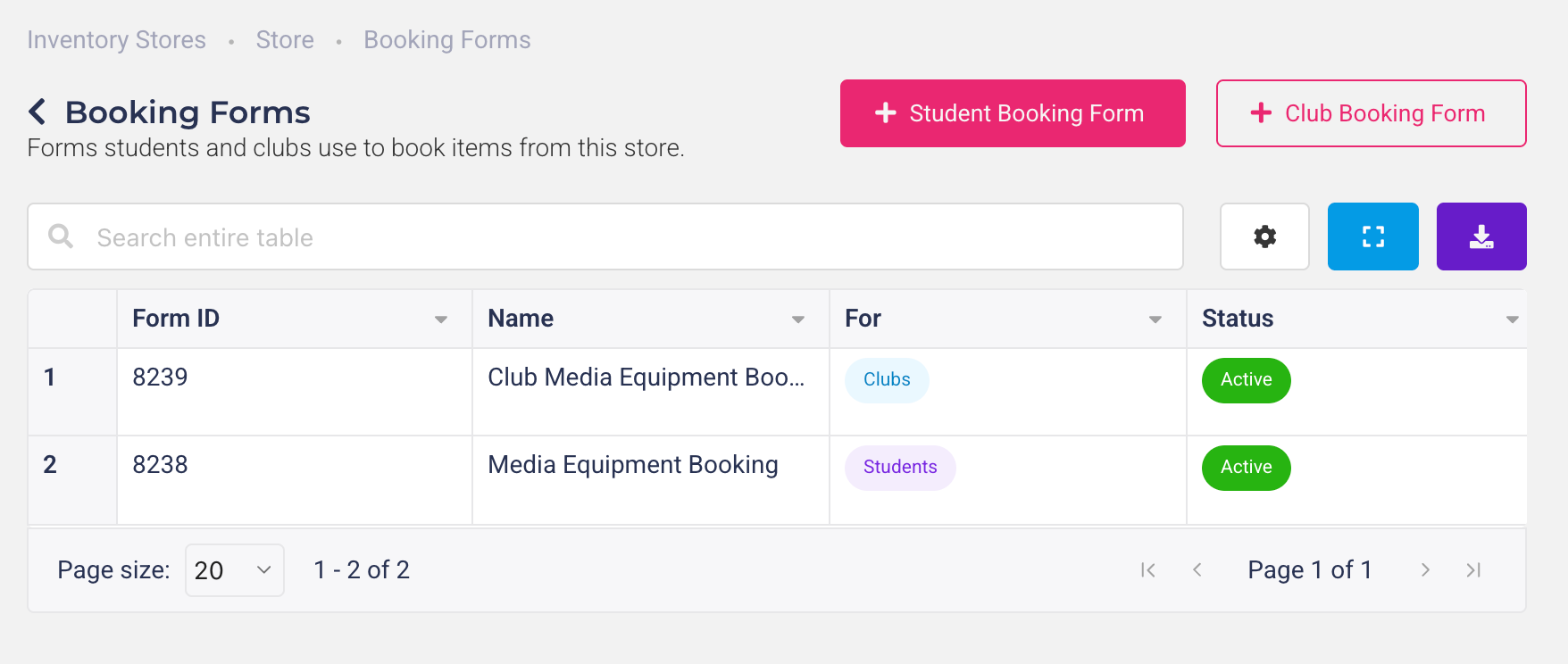
Open the store and go to Booking Forms from the side menu.
Choose your audience:
Student Booking Form: filled out by individual students.
Club Booking Form: filled out by club executives on behalf of their club (logged in with club portal credentials).
Add a title and description to the form's header. These are shown on the store's page.
Set up the Book Items question. It's already in the form body and is always required. You can change its title and description. Its Add or edit the items in this store link takes you to the store's Items page if you need to add anything.
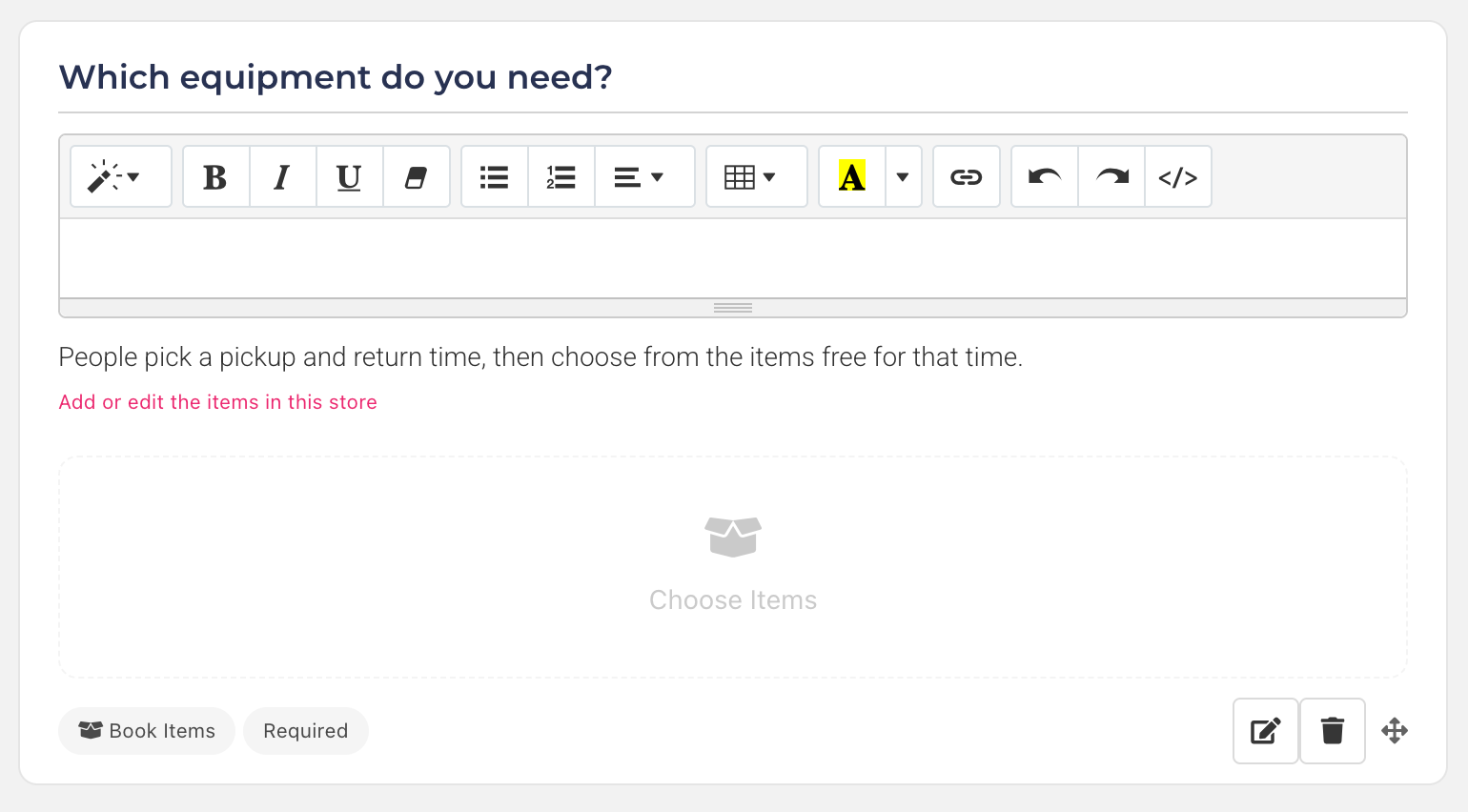
(Optional) Turn on Limit item selection to these item groups and choose the groups people can book from with this question — for example, only "Cameras". Leave it off to offer every group in the store.
(Optional) Drag and drop any other elements you need from the elements menu into the form body — for example, what the equipment is for, or a terms and conditions signature.
Click Preview to check the form. Items can't be chosen in the preview, so to try the booking window, open the form once it's saved.
Click Save and choose Save and exit. You'll be taken back to the store's Booking Forms page. If you're not ready for people to use it yet, choose Save as draft instead.
The form builder and its settings work the same as for any other form (see Creating and Publishing a Form).
Using more than one Book Items question
A form can have as many Book Items questions as you like — drag more in from the Inventory section of the elements menu. Each question has its own pickup and return time and its own group limit, so you could, for example, have one question for cameras and another for lighting, each booked for different times. Every item chosen in every question becomes its own booking on the same submission.
What people see when they book
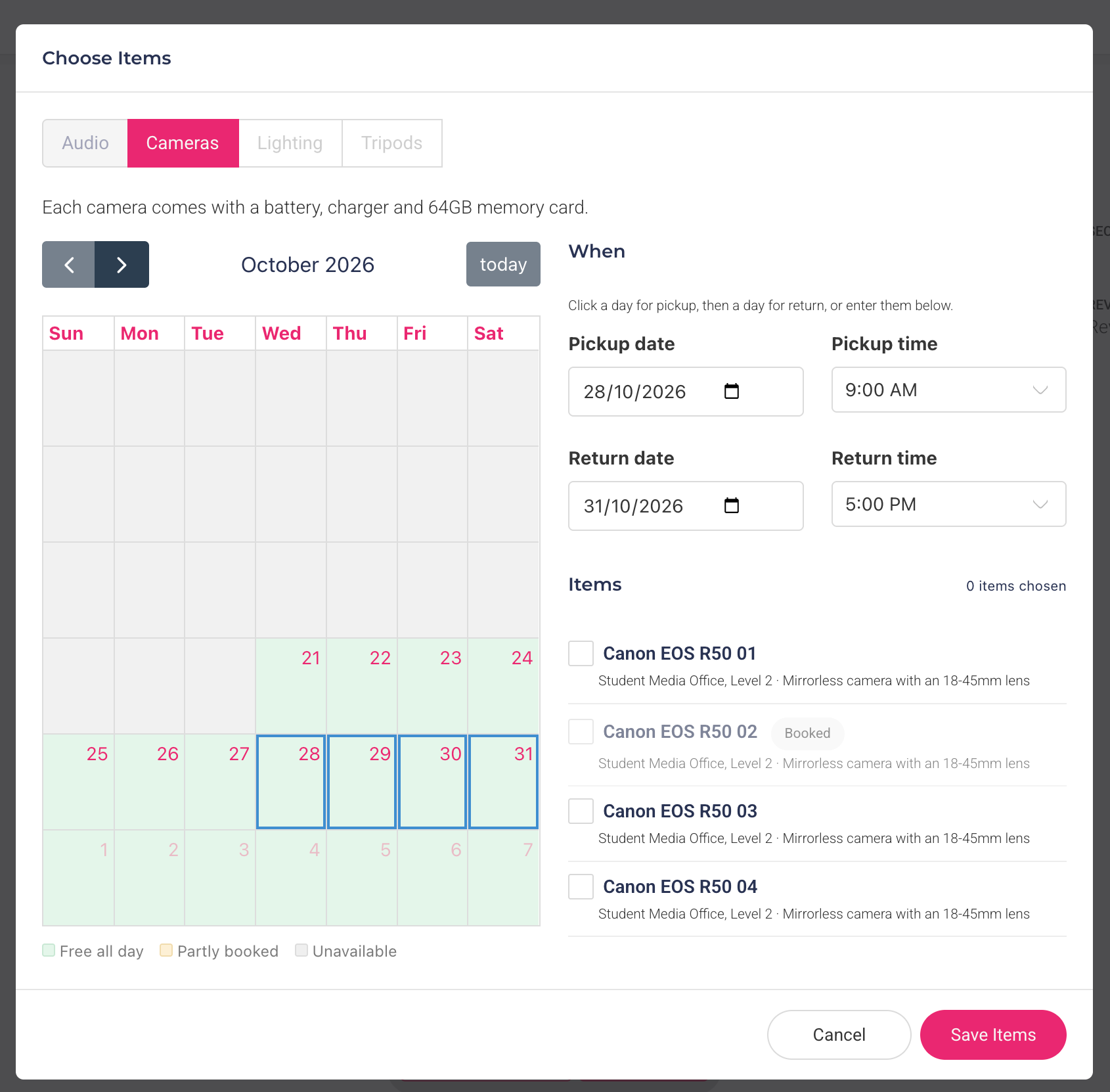
When someone clicks Choose Items on the form, a booking window opens:
Calendar: each day is marked Free all day, Partly booked or Unavailable.
Pickup and return: they click a day for pickup and a day for return, or enter the dates and times. Times are in half-hour steps. Pickup can't be in the past or more than 12 months ahead, and the return must be after the pickup.
Items: the items free for those times can be ticked; items that are already booked are greyed out. If there's more than one group, each group has its own tab.
People need to be logged in to book, and every booking starts as a request for you to approve. Once a form is submitted, its items and times can't be changed by the person who sent it — you can change them from the Bookings page if needed. A form that's only been saved as a draft can still be edited.
Sharing a booking form
Student forms: are listed on the store's page on your campus site, next to the availability calendar. Students also find the store under Book from in the Inventory tab of their profile. To copy a direct link to the form, click Share Form Link in the form's Actions menu.
Club forms: appear in the club portal under Administration > Resources > Inventory, and on the store's page in the club portal.
Managing your booking forms
The Booking Forms page lists every form for the store, with who it's For (Students or Clubs), its Status, when it's Open and how many Submissions it has. The Actions menu lets you:
Edit Form: change the questions or settings.
View Submissions: see the forms people have sent.
Deactivate / Activate: stop or restart new bookings through the form. Existing bookings aren't affected.
Duplicate Form: make a copy for the same store.
Share Form Link: copy the form's link.
Delete Application: delete the form. Bookings already made through it stay as they are.
Once your form is live, requests arrive on the store's Bookings page (see Managing inventory bookings).
Was this helpful?
Still need help? Ask the team