Managing inventory bookings
Approving and rejecting requests, checking items out, marking them returned, and changing or cancelling bookings
The Bookings page is where you run a store day to day. Every booking is one item for one pickup and return time, and moves from request to approved, checked out and returned.
Finding your bookings
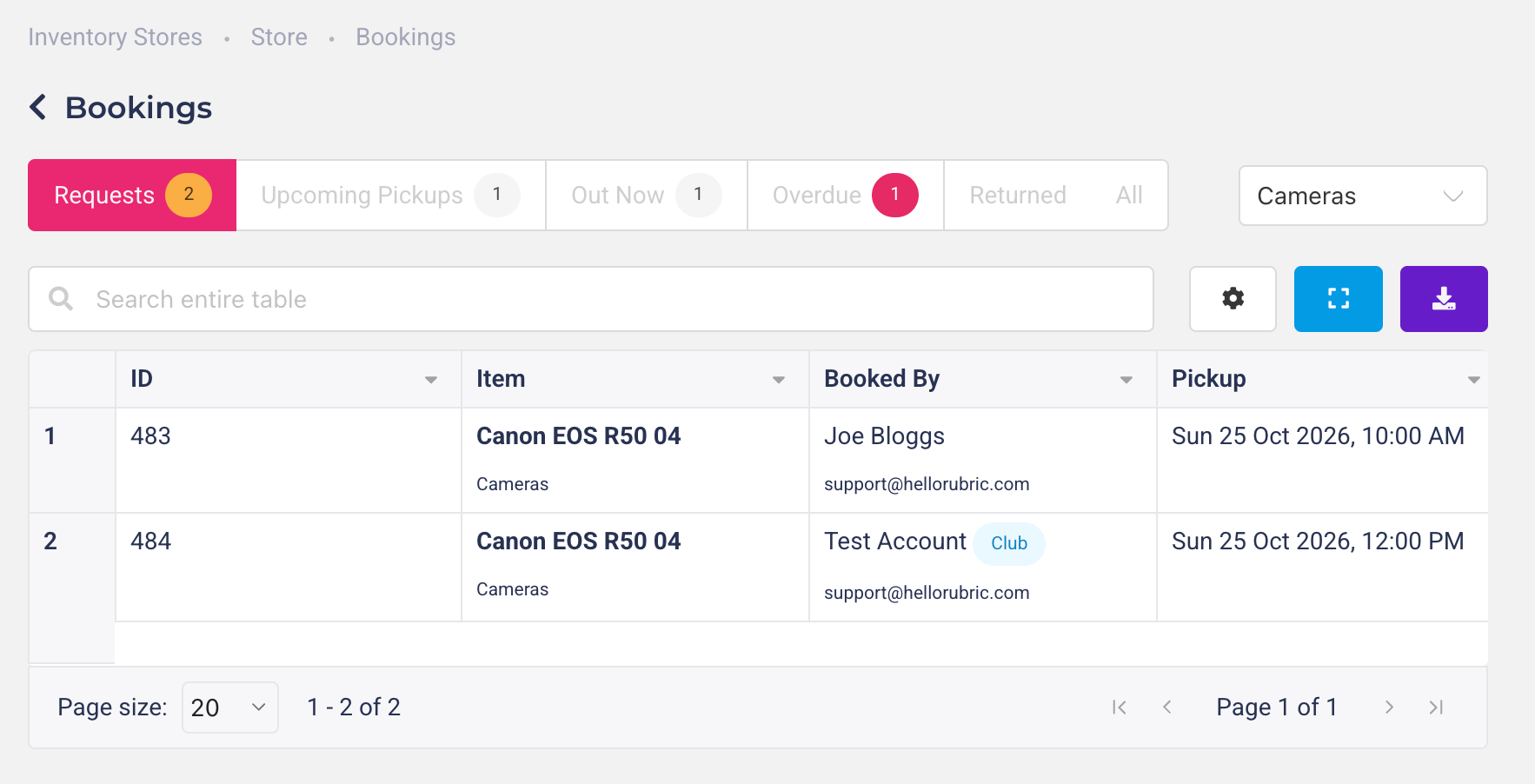
Open the store and go to Bookings from the side menu. The tabs split bookings by what needs doing:
Requests: new requests waiting for you to approve or reject.
Upcoming Pickups: approved bookings waiting to be collected.
Out Now: items that have been checked out.
Overdue: items still out after their return time.
Returned: items that have come back.
All: every booking, including rejected and cancelled ones.
Use the All item groups drop-down to show one group only. Each booking shows its ID, the item, who booked it (with a Club tag for club bookings), the pickup and return times, its status and the form it came from.
Tip: To see bookings on a timeline instead, go to Items and click Calendar (see Adding item groups and items). You can take the same actions from there.
Approving or rejecting a request
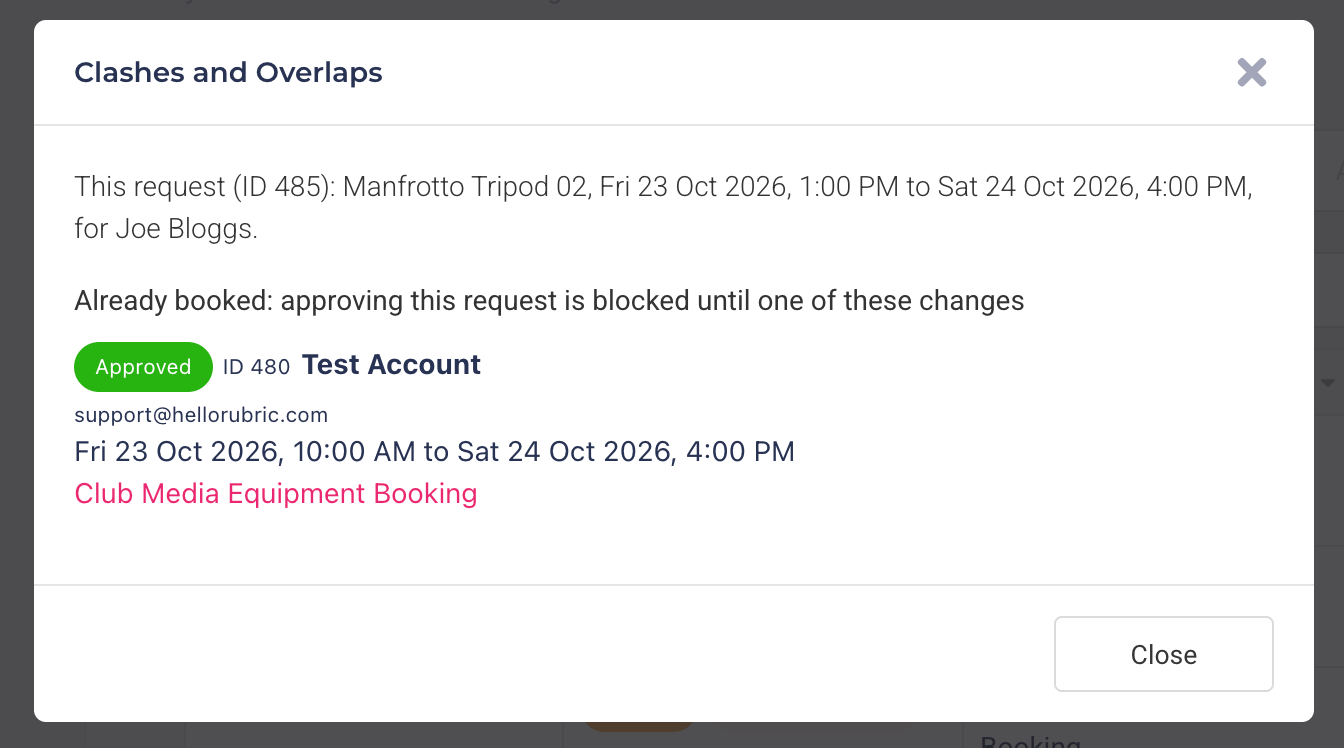
On the Requests tab, check the request for flags. Click a flag to see the bookings it clashes or overlaps with: who made them, their status and times, and a link to each submission.
Clashes with a booking: the item is already approved or out for some of those times, or is still out on an overdue loan, so the request can't be approved as it is. Change it to another item or time, or reject it. If the other booking is the one that should move, change or cancel that booking instead.
Overlaps 1 request (or more): someone else has asked for the same item at the same time. Requests don't hold an item, so whichever you approve first gets it, and the other will then clash.
To approve, click Approve in the booking's Actions menu. This claims the item for those times. To approve everything waiting on the same submission at once, click Approve submission.
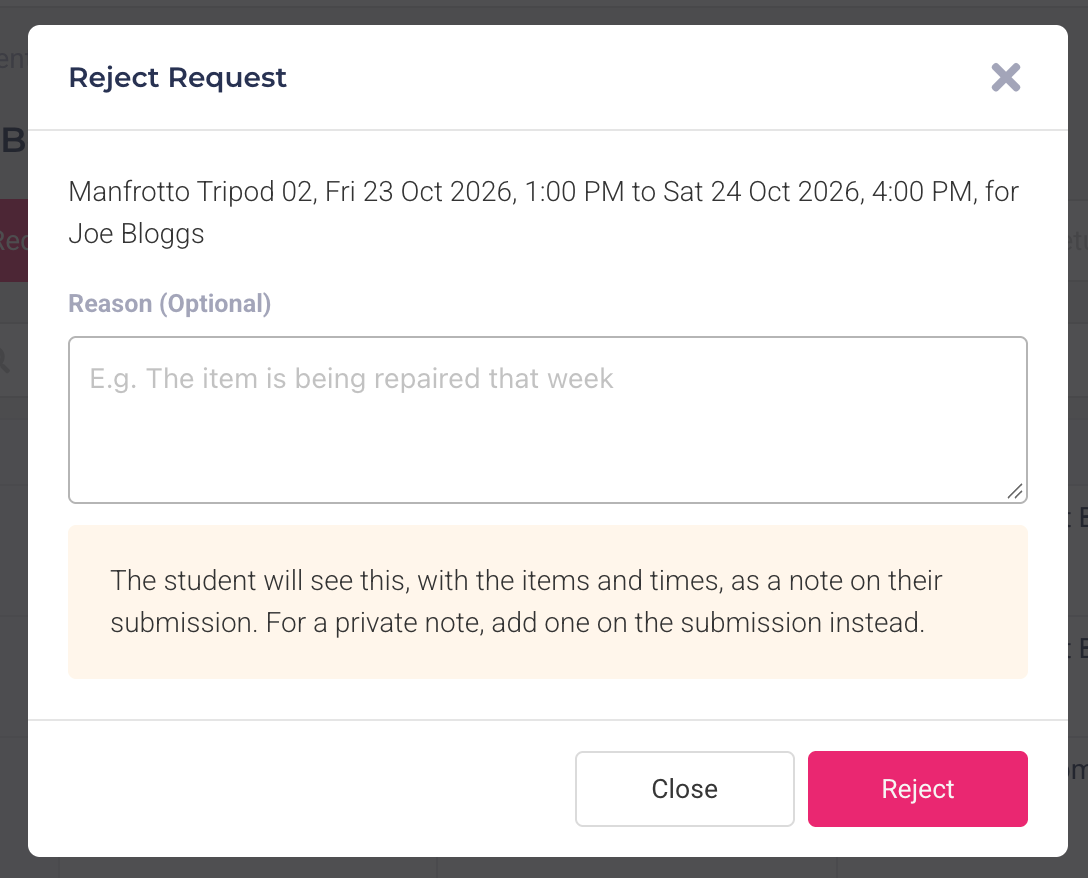
To reject, click Reject, add an optional Reason and click Reject. The student or club sees the reason, with the item and times, as a note on their submission. For a private note, add one on the submission instead.
Tip: Approve and reject bookings from the Bookings page or a participant's profile, not with the approve and reject actions on the submission itself — those change the submission's status but don't approve or reject its bookings.
Checking items out
When someone collects their items, find the booking on the Upcoming Pickups tab and click Check out in its Actions menu. To check out everything approved on the same submission at once, click Check out submission.
If a booking shows Item still out, the previous borrower hasn't returned the item yet. It can't be checked out until that earlier loan is marked returned, or until you change this booking to another item.
Marking items returned
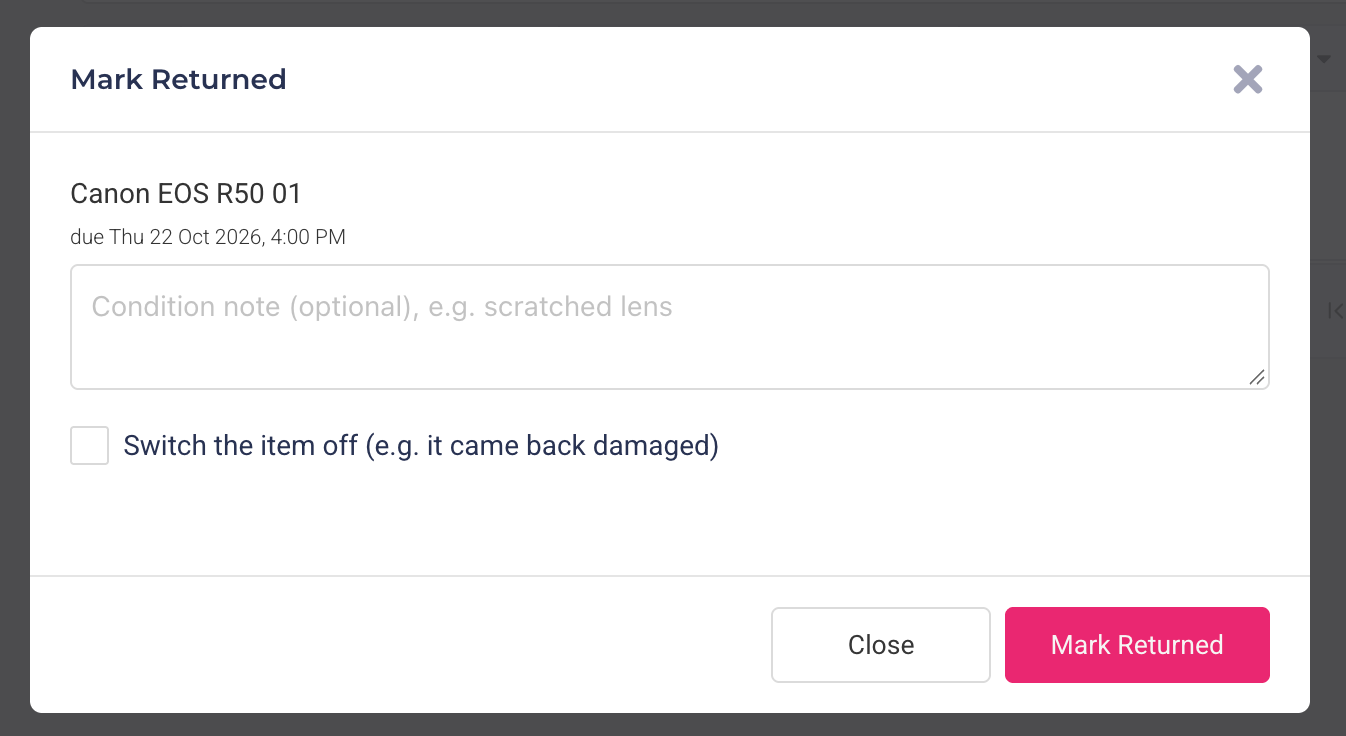
Find the booking on the Out Now or Overdue tab and click Return in its Actions menu, or Return submission for everything out on that submission.
(Optional) Add a condition note — for example, "scratched lens". It's saved in the item's history.
(Optional) Tick Switch the item off if it came back damaged, so it can't be booked until it's fixed.
Click Mark Returned.
If several items were booked on one submission, you can return them one at a time. The submission's item summary shows how many are still out.
Changing a booking
Click Change in the booking's Actions menu to swap the item or move the pickup and return times — for example, to give someone Camera 01 instead of Camera 03. Once an item is checked out, the option becomes Change return time, which lets you extend or shorten the loan. Rubric checks that the new item and times are free before saving. The student or club sees the change, with the old and new item and times, as a note on their submission.
Cancelling a booking
An approved booking that hasn't been collected yet can be cancelled by clicking Cancel in its Actions menu, with an optional reason the student or club will see. This frees the item for others. Students and clubs can also cancel their own requested or approved bookings until the pickup time.
Withdrawn submissions
If a student or club withdraws a submission, its bookings aren't cancelled automatically. A pending or approved booking from a withdrawn submission is tagged Submission withdrawn, because it still holds the item — cancel it if it's no longer needed. A booking that was already out stays out and can be returned as usual.
Archiving a submission yourself from its actions menu does cancel any of its bookings that haven't been checked out.
Walk-in loans
Every booking comes from a booking form, so bookings can't be added directly from the Bookings page. If someone turns up without a booking, ask them to fill out the store's booking form on the spot, then approve it and check it out straight away. The loan then shows in their history, and they'll get the return reminder.
Was this helpful?
Still need help? Ask the team