Adding item groups and items
Creating item groups, adding items one at a time or several at once, keeping track of each item, and the calendar view
Every item in a store is one real, physical thing — for example, "Camera 03" — and every item belongs to a group, such as "Cameras". Groups keep the booking window tidy and let you limit a booking form to certain kinds of equipment.
Creating an item group
Open the store and go to Items from the side menu.
Click Create Item Group (or Create Group if the store already has groups).
Give the group a Name — for example, "Sony A7 cameras" or "AV equipment".
(Optional) Add Details. These are shown to people above the item list when they book from this group, so they're a good place for notes such as "Each camera comes with a battery and strap".
Leave Active on so the group's items can be booked, and click Create.
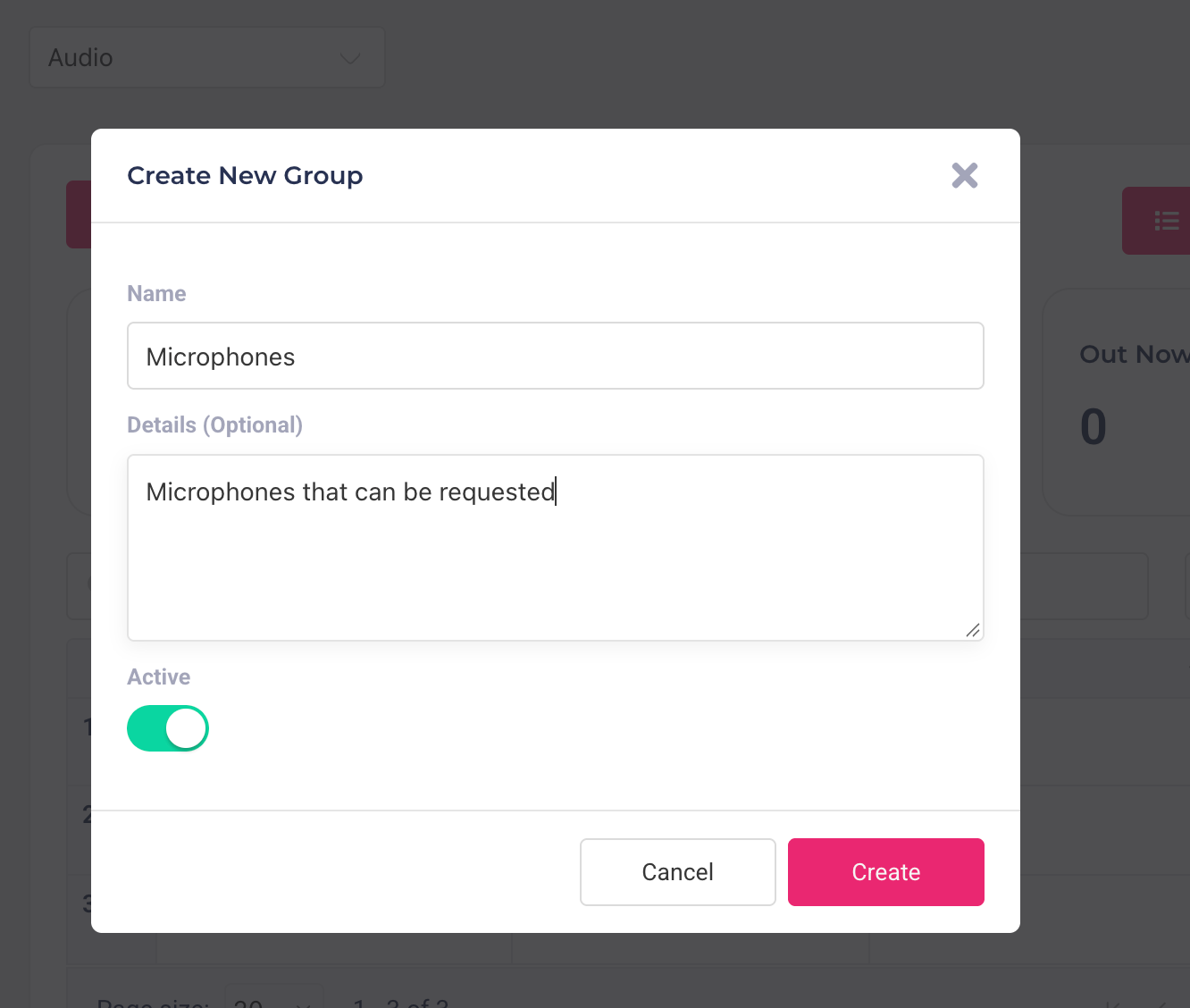
A group can hold copies of the same thing (Camera 01 to Camera 05) or a mix of things (projector, speaker, microphone). Switch between groups with the drop-down at the top of the page. To rename a group, change its details or switch it off, open the ⋮ menu next to Add Items and choose Edit Group.
Adding items
Select the group from the drop-down at the top of the page and click Add Items.
Enter an Item Name — for example, "Camera".
(Optional) To add several identical items at once, enter how many in How many? (up to 100 at a time). They're numbered for you: "Camera" × 5 gives Camera 01 to Camera 05. Numbering always starts at 01, so when you add more to an existing set, give them a different name or rename them afterwards. With How many? left at 1, the item keeps the name exactly as you typed it.
(Optional) Add a Description, a Photo and a Pickup Location (for example, "Level 2 front desk"). All three are shown with the item when people book it, and the photo helps them check they're getting the right one. When you add several items at once, they all get the same photo; you can change each one later.
Choose whether the item appears on the store's public availability calendar, which anyone with the store's link can see. Show on public calendar is on by default; turn it off to keep the item off the calendar. Logged-in students and clubs can still book it through a booking form.
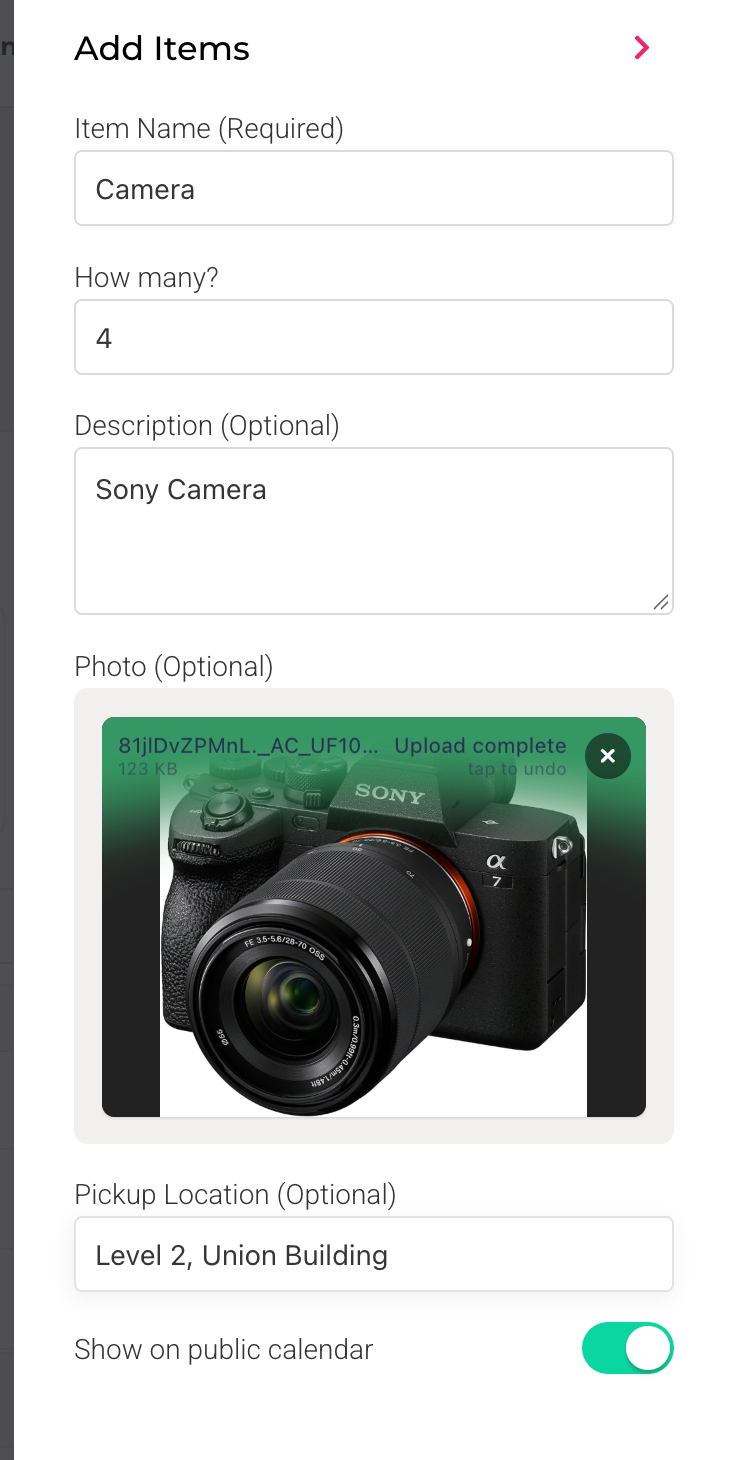
Click Add Items.
Keeping track of items
The Items page lists each item in the selected group with its Status:
In: in the store and available to book.
Out: checked out. With shows who has it and Due Back shows when it's due.
Overdue: checked out and past its return time. No one else can book it until it's marked returned.
Switched off: can't be booked (see below).
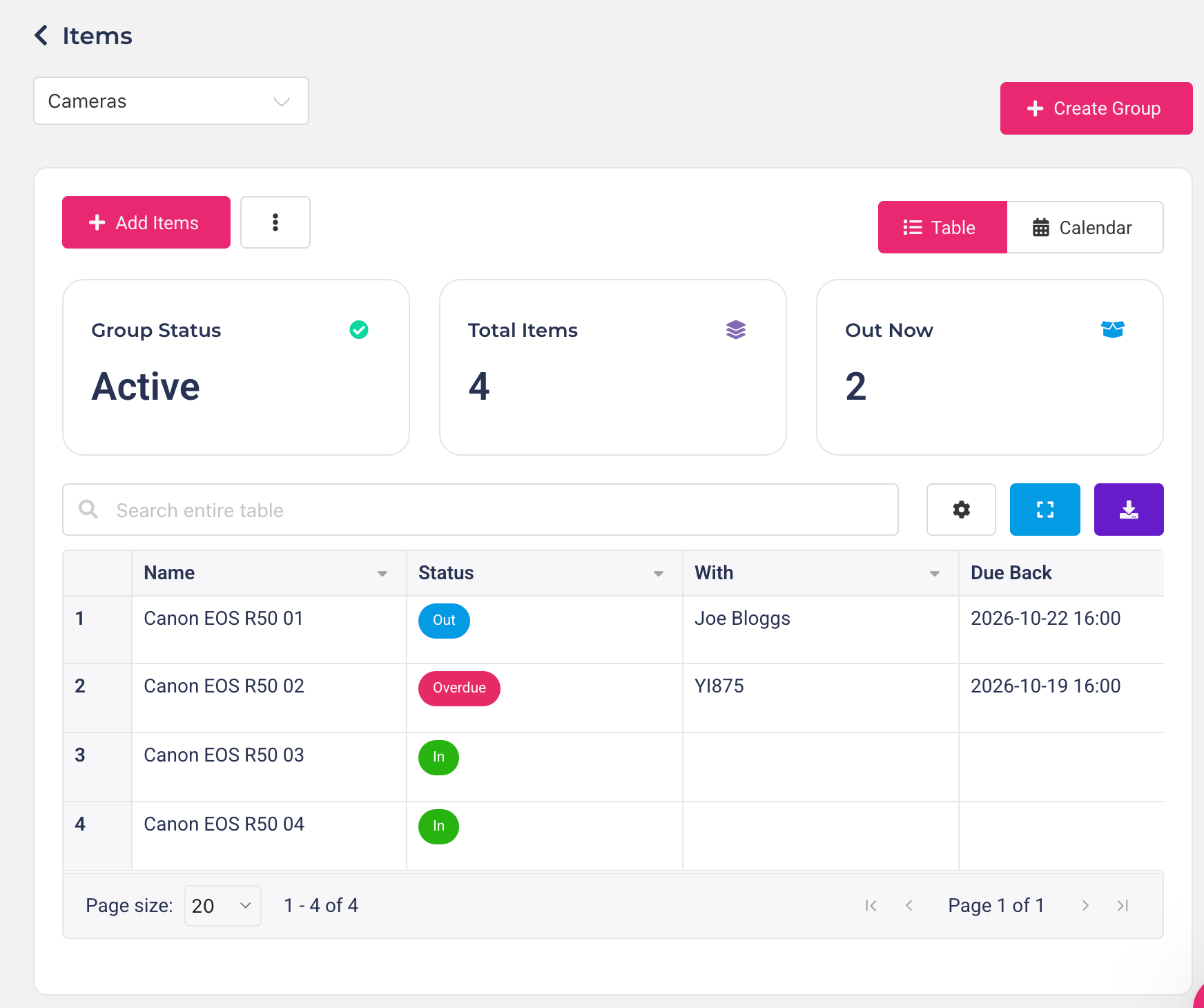
The Actions menu on each item lets you:
Edit: change its name, description, photo, pickup location or public calendar setting, or move it to another group using Item Group. Click Save when you're done.
History: see everyone who has borrowed the item, when it was checked out and returned and by whom, and any condition notes added on return.
Switch off / Switch on: stop the item being booked — for example, while it's being repaired — and switch it back on when it's ready. If it's out when you switch it off, it stays out and can be returned as normal. Switching an item off doesn't cancel bookings already made for it, so check the Bookings page for any that need moving to another item.
Delete: remove an item that's gone for good. Before you do, see What happens when you delete a store, group, item or form.
Seeing bookings on a calendar
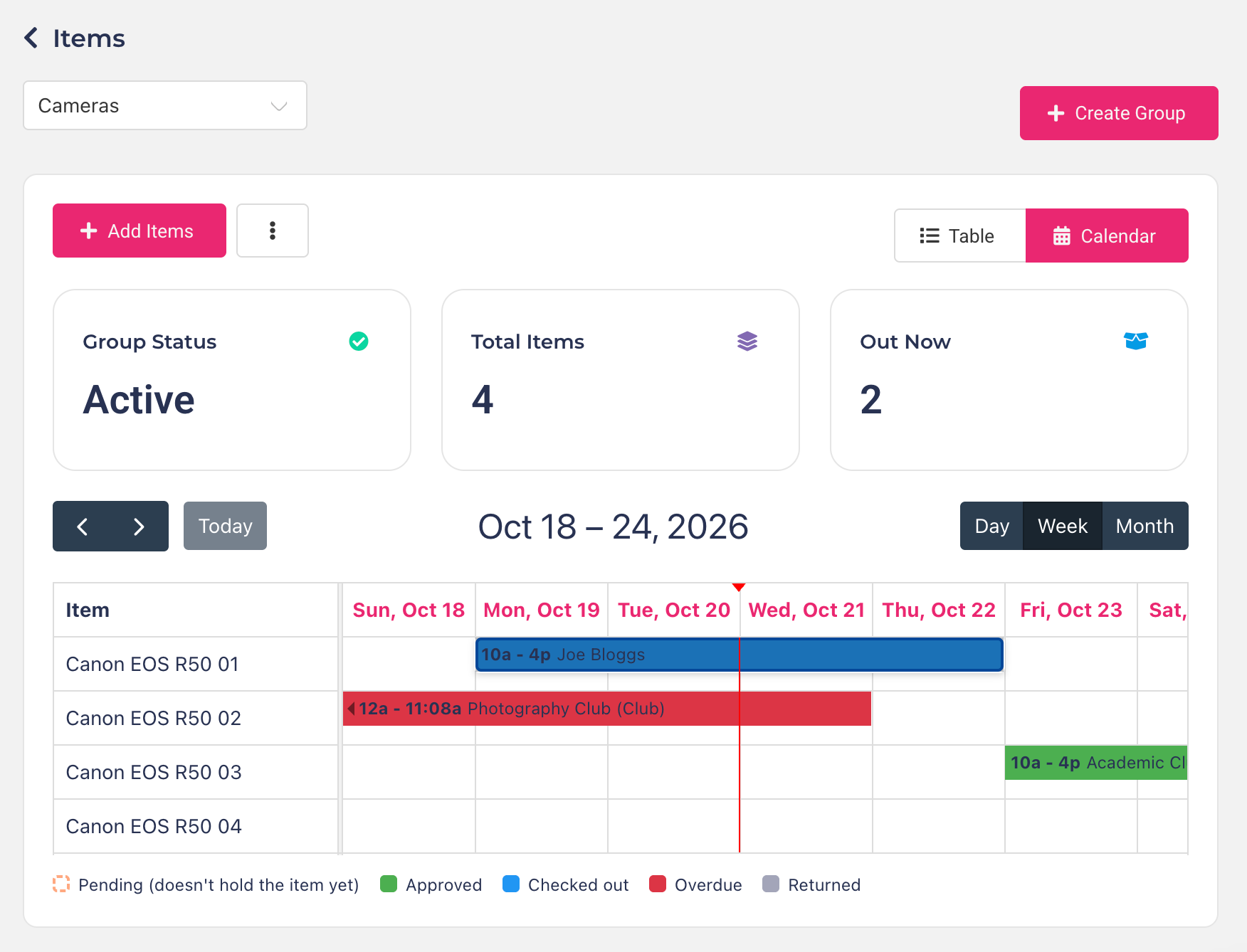
Click Calendar at the top right of the Items page to see the selected group's bookings on a timeline, with one row per item. Click Table to go back to the list.
Views: switch between Day, Week and Month, and use the arrows or Today to move around. A red line marks the current time.
Colours: pending requests are outlined, as they don't hold the item yet; approved bookings are green, checked-out items blue, and returned items grey. Overdue items are red and run on to the current time, since they're still out.
Booking details: click a booking to see who booked it, the times and any flags — for example, Clashes with a booking, which you can click to see the other bookings involved — and to approve, check out, return, change or cancel it. These are the same actions as on the Bookings page.
Switched-off items are greyed out, and a deleted item keeps its row while it still has bookings in view.
Once your items are in, create a booking form so people can book them (see Creating inventory booking forms).
Was this helpful?
Still need help? Ask the team