Inventory store settings and emails
Pausing a store's bookings, overdue alerts for admins, and the reminder emails students and clubs receive
Each store has two settings: whether it's taking bookings, and whether admins are emailed about overdue items. Rubric also emails students and clubs reminders automatically, so you don't have to chase pickups and returns.
Changing a store's settings
Open the store and go to Settings from the side menu.
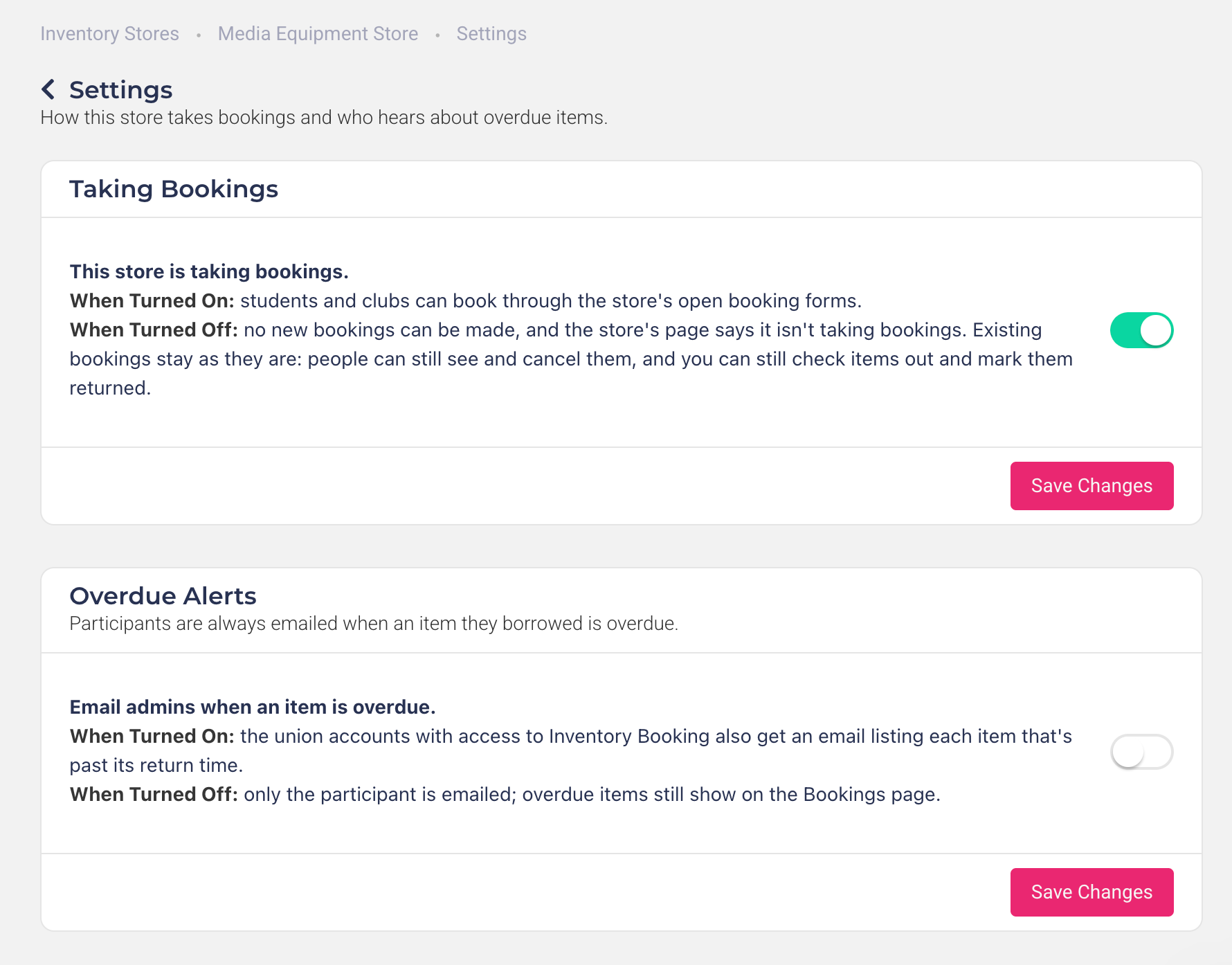
Taking Bookings: with This store is taking bookings on, students and clubs can book through the store's open booking forms. Turn it off to pause the store — for example, over the holidays. No new bookings can be made, and the store's page says it isn't taking bookings. Existing bookings stay as they are: people can still see and cancel them, and you can still check items out and mark them returned.
Overdue Alerts: participants are always emailed when an item they borrowed is overdue. Turn on Email admins when an item is overdue to also email the union accounts with access to Inventory Booking, listing each item that's past its return time. If you use branches, admins only hear about stores in their own branches.
Click Save Changes under the setting you changed.
Emails Rubric sends
Each email lists the items by name (for example, "Camera 02"), with the times, the store, and a link to the booking, so people know exactly what to collect or bring back. Items due at the same time are sent in one email. Club bookings are emailed to the club account's email address.
Pickup reminder: sent up to an hour before the pickup time of an approved booking. It asks people to cancel if they can no longer make it, so someone else can borrow the item.
Return reminder: sent up to an hour before a checked-out item is due back.
Overdue notice: sent to the borrower shortly after a checked-out item passes its return time.
Overdue summary for admins: sent at the same time, if Email admins when an item is overdue is on. Each item links to the store's Bookings page, open on the Overdue tab.
Each email is only sent once per booking. If you change a booking's pickup or return time, the reminder is sent for the new time instead. No overdue email is sent for an item that was already past its return time when it was checked out.
Notes on submissions
When you reject, cancel or change a booking, the student or club sees a note on their submission saying what happened, with the item, the times and any reason you gave.
Was this helpful?
Still need help? Ask the team